
Adding material
Adding files, whole folders, links, pasted text and repositories to a folder, and what happens while they are read.
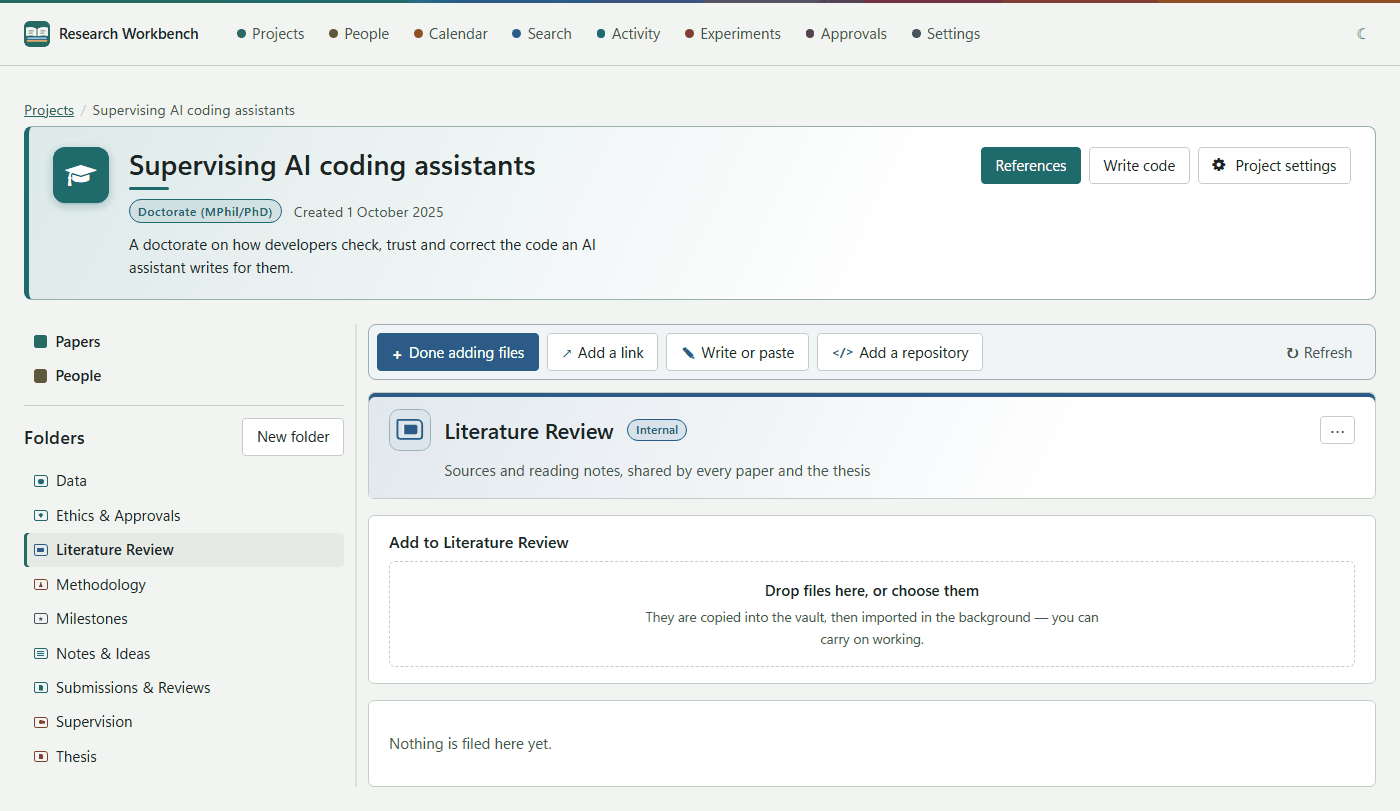
Material is always added to a folder, so choose one on the left first. The folder then shows four buttons: Add files, Add a link, Write or paste and Add a repository. While a form is open, its button changes (for example to Done adding files).
Add files
Drop files on the area that says Drop files here, or choose them, or click it to pick them. The files are copied into the vault and imported in the background, so you can carry on working.
- Up to 200 files at a time, each up to 512 MB.
- The workbench reads PDF, Word (.docx), PowerPoint (.pptx), Excel (.xlsx), Markdown, text, HTML, CSV and JSON files, pictures (PNG, JPEG, GIF, WebP), internet shortcuts (.url) and ZIP archives. Any other file is still stored, and can be found by its name and details.
- If the same file is already in the project, it is recorded as another copy of it rather than stored twice.
Import a whole folder from your computer
Inside the Add files panel, under Or import a folder from this computer, type a path such as C:\Users\me\Papers. Tick Include the folders inside it if you want those too (it is on by default), then press Import folder. The files are read where they are and copied into the vault; your originals are left alone. You can import up to 10,000 files at once.
Add a link
Type the Address and, optionally, What the page is called. Look it up fetches the page and fills in its title, but only when you press it, never by itself. Add the link saves it and opens its Details, where you can record the author, date and so on for citing.
Write or paste
Use this to keep a note, or text copied from a page. Give it a Title and the Text (Markdown). Before saving, remove adverts, sign-up boxes and "read more" links, because whatever is saved is what search finds. Open Where it came from to record the address, the authors, where and when it was published, and the day you read it, so you can cite it later. Then press Save the document.
Add a repository
See Repositories.
While files are imported
The Imports section under the buttons lists each file: waiting, importing, imported, already here, cancelled or failed. A failed file shows why, with Try again and Dismiss. Cancel what is waiting withdraws the files that have not started.
After a file is imported, the workbench works on it while you do other things. It reads its text, makes a Markdown working copy, draws a preview of the first page, cuts the text into passages, and indexes them for searching by meaning. Activity → Work in the background shows how much of each is still waiting.
When a file cannot be read
A document whose text is not read can still be found by its name and details, but not by what it says. Its row shows one of these badges:
- Waiting to be read: reading happens while the workbench is idle.
- Needs OCR: a scanned PDF with no text in it. The workbench cannot read scans yet.
- Cannot be read: a kind of file the workbench has no reader for.
- Could not be read: reading it failed.
The Needs attention panel at the bottom of the project lists these documents for the whole project, each with Read it again (or Try anyway).