
Working with a folder's documents
Filtering, sorting and tagging documents, the Details drawer, moving and removing documents, and the picture wall.
A folder's documents are shown in a table.
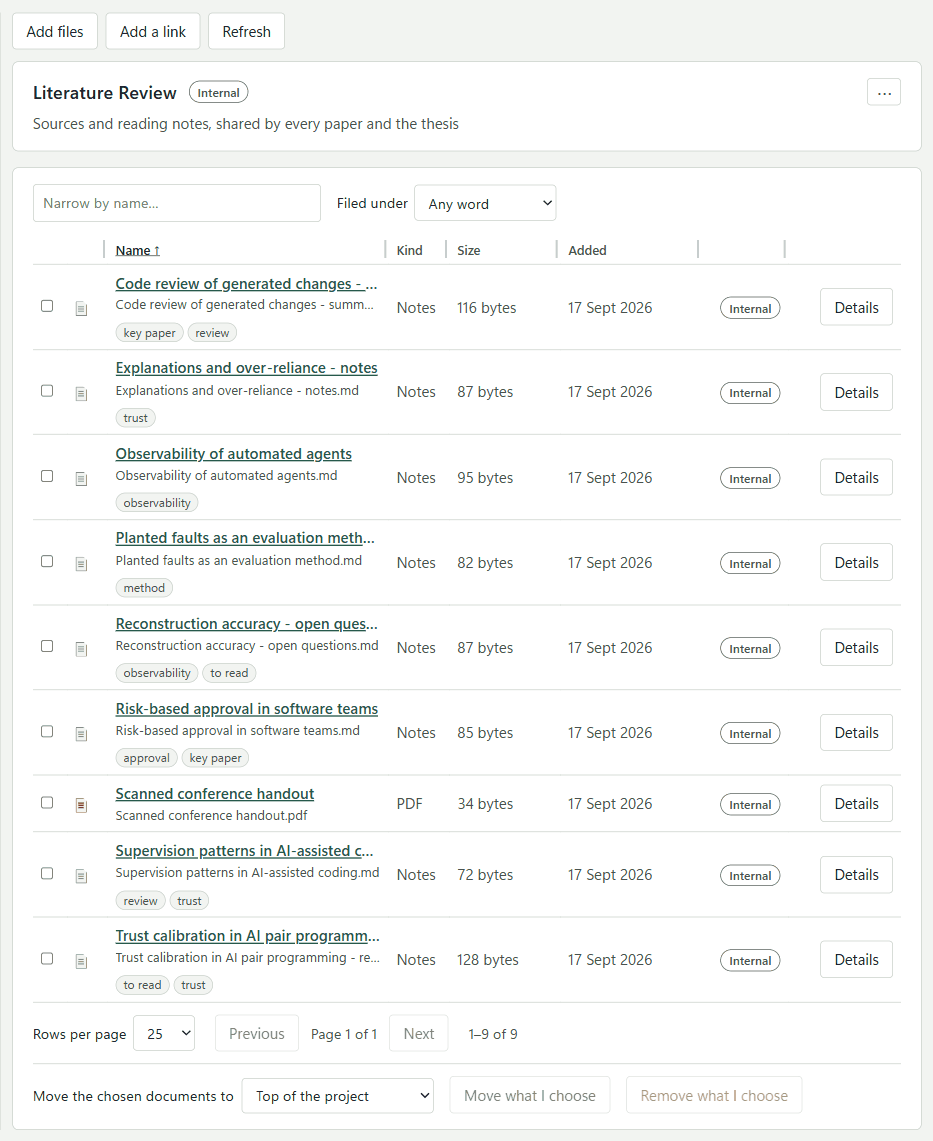
Finding a document
- Narrow by name… filters by title or file name.
- Filed under filters by tag. Clicking a tag on a row filters by that tag, and clicking it again clears the filter.
- Click a column heading (Name, Kind, Size, Added) to sort by it, and click again to reverse the order.
- Drag the edge of a column heading to resize the column. Double-click an edge to put every column back. Column widths are kept on this computer.
- Rows per page can be 10, 25, 50 or 100.
Views
- List: the table.
- Pictures: a wall of pictures. This choice is remembered on this computer.
- Code: for folders holding code. See Repositories.
Pictures the workbench cut out of papers are hidden from the list unless you tick Show the pictures made from papers.
The Details drawer
Press Details on a row to open the drawer. It shows:
- A preview: the picture itself, a drawing of the first page, or the start of the text.
- The facts: the file, its size, the day it was added, and its sensitivity label.
- Filed under: its tags. Use Add a word to add one (the project's existing tags are suggested), and × to remove one.
- A model's summary, if one was made, with a link to exactly what was asked.
- What it is: Add details opens the bibliographic record. It holds the title, authors (
Smith, Jane; Adams, Piet), date and kind, where it was published, volume, issue and pages, publisher, ISBN, DOI, address, the day you read it, a short title, the citation key, the abstract and your notes. The fields offered change with the kind of work.
Moving and removing
Tick documents (the box in the header ticks the whole page), then use the bar below the table:
- Move the chosen documents to a folder, then press Move.
- Remove: it asks first. The files stay in the vault, but the notes made on them do not.