
Projects
Creating a project from a template, the project page, project settings, and deleting projects.
A project holds everything for one piece of research: its folders, documents, references, papers, people lists and deadlines. A doctorate is one project, holding every paper written during it.
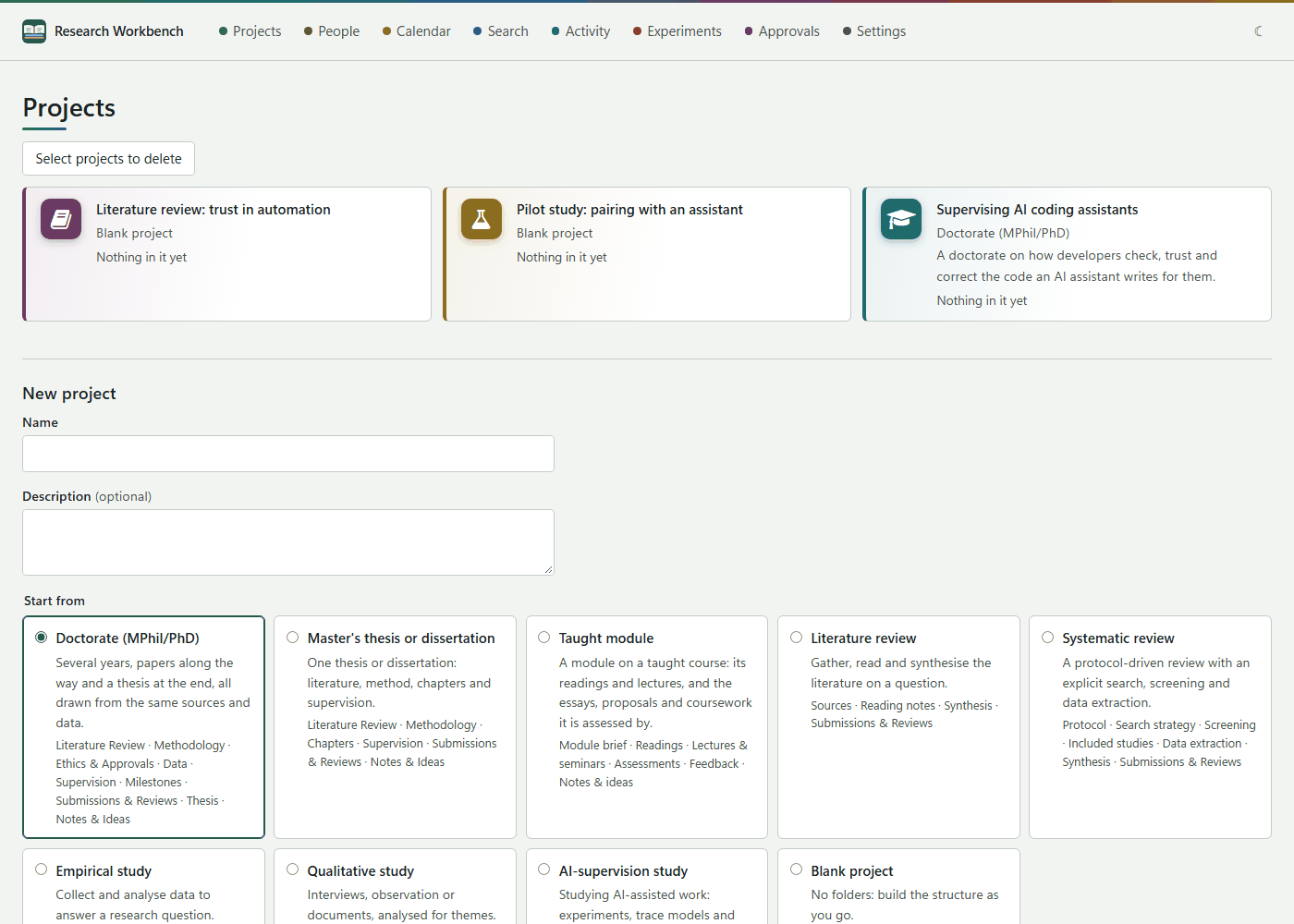
Creating a project
On Projects, fill in the New project form:
- Name (required), and an optional Description.
- Start from: a template. Each template creates a set of folders, and each folder has a purpose line saying what goes in it.
- Press Create project. The new project opens.
| Template | Folders it creates |
|---|---|
| Doctorate (MPhil/PhD) | Literature Review, Methodology, Ethics & Approvals, Data, Supervision, Milestones, Submissions & Reviews, Thesis, Notes & Ideas |
| Master's thesis or dissertation | Literature Review, Methodology, Chapters, Supervision, Submissions & Reviews, Notes & Ideas |
| Taught module | Module brief, Readings, Lectures & seminars, Assessments, Feedback, Notes & ideas |
| Literature review | Sources, Reading notes, Synthesis, Submissions & Reviews |
| Systematic review | Protocol, Search strategy, Screening, Included studies, Data extraction, Synthesis, Submissions & Reviews |
| Empirical study | Literature, Methodology, Data, Analysis, Submissions & Reviews, Notes & ideas |
| Qualitative study | Literature, Methodology, Interviews & Human Data, Coding & themes, Submissions & Reviews, Notes & ideas |
| AI-supervision study | Literature Review, Methodology, Experiments, Trace Models, Coding Standards, Agent Runs, Interviews & Human Data, Submissions & Reviews, Notes & Ideas, Diagrams & Architecture |
| Blank project | No folders: build the structure as you go |
In the qualitative and AI-supervision templates, Interviews & Human Data is already marked as holding human-subject data. See Folders and sensitivity labels.
Each project card on the list shows its colour and mark, its template, its description and its counts. It also says when files are importing, have not been read yet, or failed.
The project page
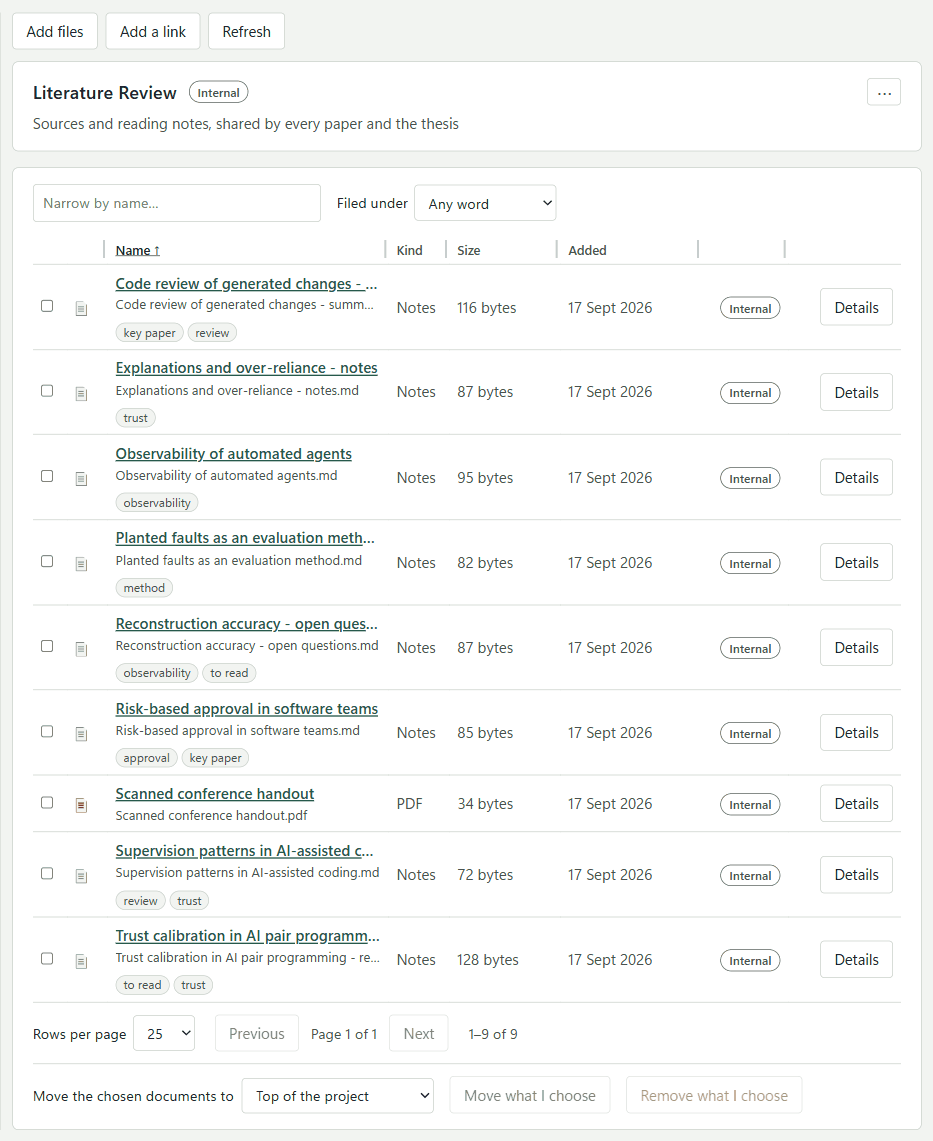
- The header shows the project's mark, name, template and description. Its buttons are References, Write code and Project settings. If the project syncs with the cloud, a small sync badge sits under them.
- The left pane has two places, Papers and People, then the Folders tree with New folder. You can drag the divider to make the pane wider; the width is remembered on this computer.
- With no folder chosen, the right side shows What is here: totals, Recently added documents, and the project's papers with their progress.
- With a folder chosen, it shows the folder's banner, the buttons to add material, and the folder's documents.
The folder you have open is kept in the address, so the back button and links bring you back to it.
Project settings
Project settings opens a drawer:
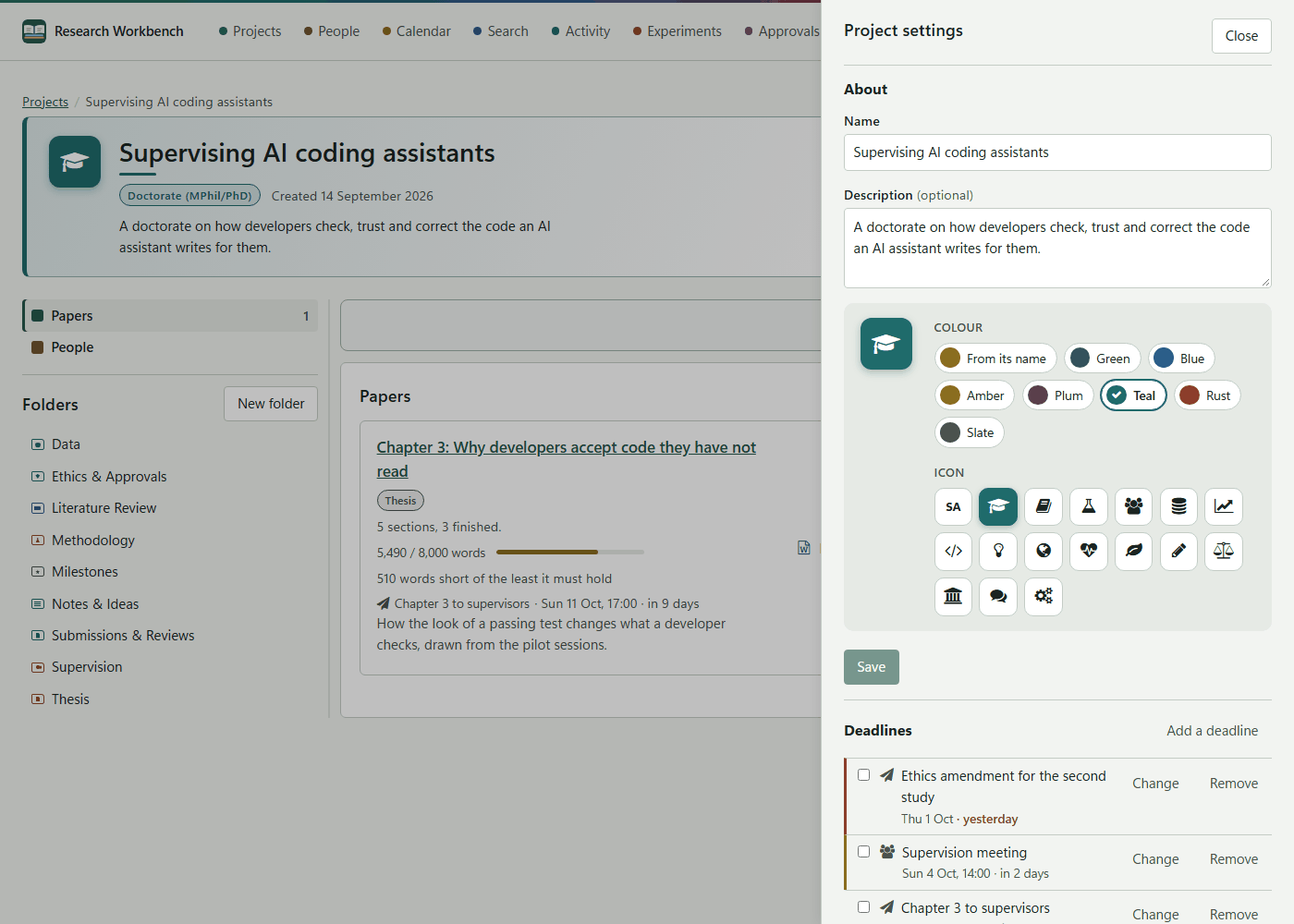
- About: the name and description, a Colour (from its name, or Green, Blue, Amber, Plum, Teal, Rust or Slate) and an Icon (its initials, or one of about twenty pictures such as Doctorate, Book, Experiment, Data, Code or Law). A preview tile shows the result. Save is enabled once something has changed.
- Deadlines: the project's deadlines, with Add a deadline. See Deadlines and the calendar.
- Cloud sync: shown when this computer is linked to the cloud. See Sync.
- Delete this project: Delete project… asks you to confirm. Its folders, documents and papers go with it, and there is no undo yet.
Deleting several projects
On Projects, press Select projects to delete, tick the projects, and press Delete…. The confirmation lists their names. Projects someone else created show Not yours and cannot be ticked.