
Reading documents
The reader, the working copy, highlights and notes, figures, and the references and links a document holds.
Click a document's name to open it.
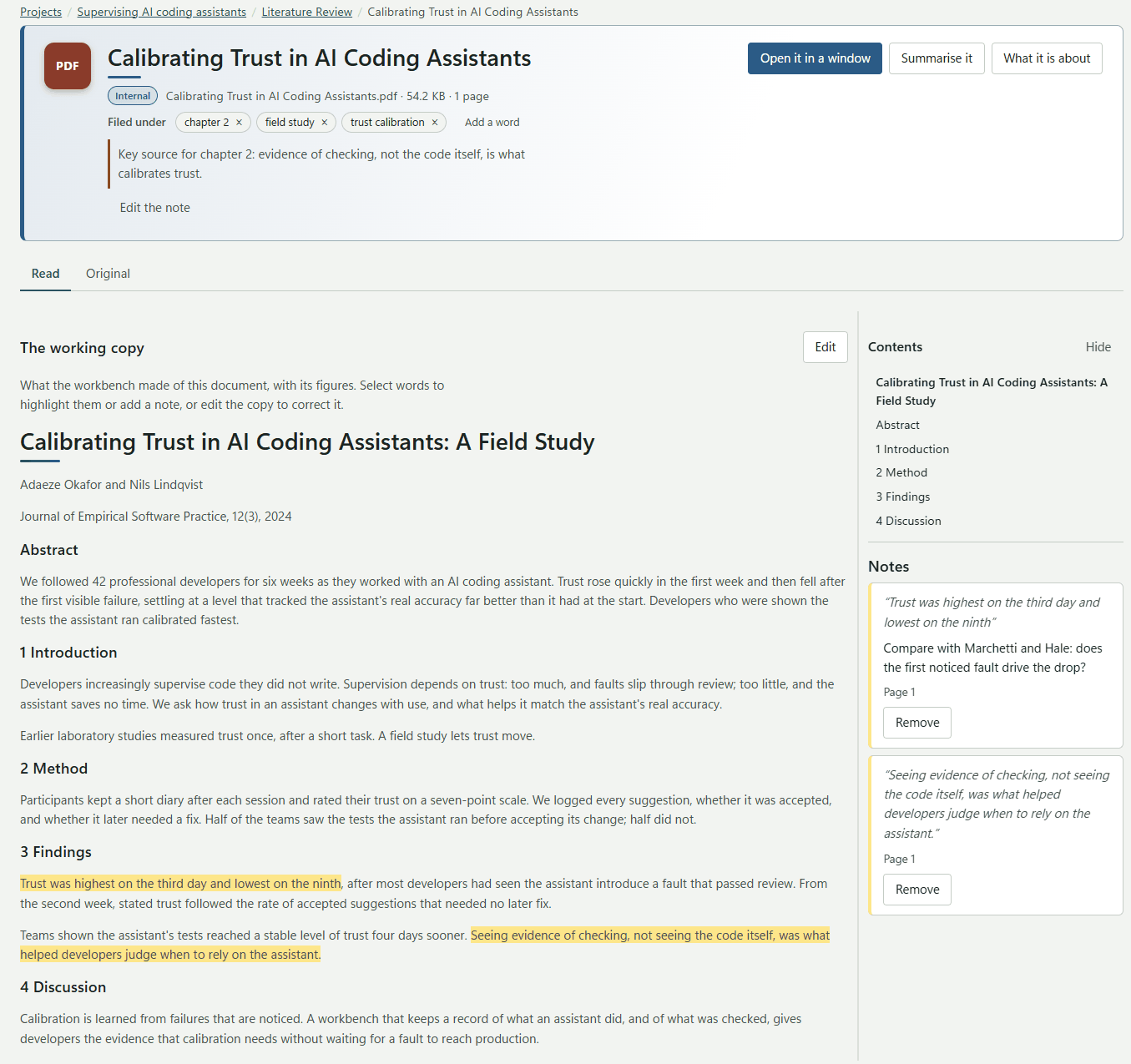
The header
- The title, the label, and the file, its size and its number of pages.
- Filed under: its tags.
- Add a note: say why you kept the document. This note travels with it, and the browser extension fills it in for pages you save.
- Open it in a window: the original file (or Open the link for a link).
- Summarise it, What it is about and Sharpen the summary. See Summaries.
Views
The buttons under the header switch between views. Each appears only when it has something to show.
- Read: the working copy, with your notes beside it.
- References (N): the works the document cites.
- Links (N): the web addresses it links to. Add to the project turns one into a link document.
- Original: the PDF or picture as it is.
The working copy
The workbench converts each document into a clean Markdown working copy, with its headings, tables and figures. Contents lists its headings so you can jump around.
Edit lets you correct the working copy, for example a table the conversion got wrong. It saves by itself as you type. Once you have written in a copy, it is yours: nothing converts over it again.
Highlights and notes
- Select a passage. It has to stay within one page.
- Pick a colour (Yellow, Green, Pink or Blue) to highlight it, or press Add a note to write about it.
The Notes pane beside the text lists every highlight and note with its page. Notes you write on a document filed under a reference can be quoted in a paper, with the page, from the Cite picker. See Citations.
If the document is read again and a passage moves, the note follows it. If the words are no longer there, the note says so.
Figures
- Click a figure in the working copy to correct it. You can crop it, straighten it and save it under a new name; the copy then points at the new picture.
- Read this figure into text asks a model that can see pictures to redraw a diagram as a Mermaid diagram, or a table as a table. Then Put this diagram in the paper adds it. Plotted charts and photographs are declined.
- For a picture document, Correct this picture can also update every paper that shows it.