
People and mailings
The address book, what each person agreed to, project lists, importing and exporting contacts, and sending a paper to a list.
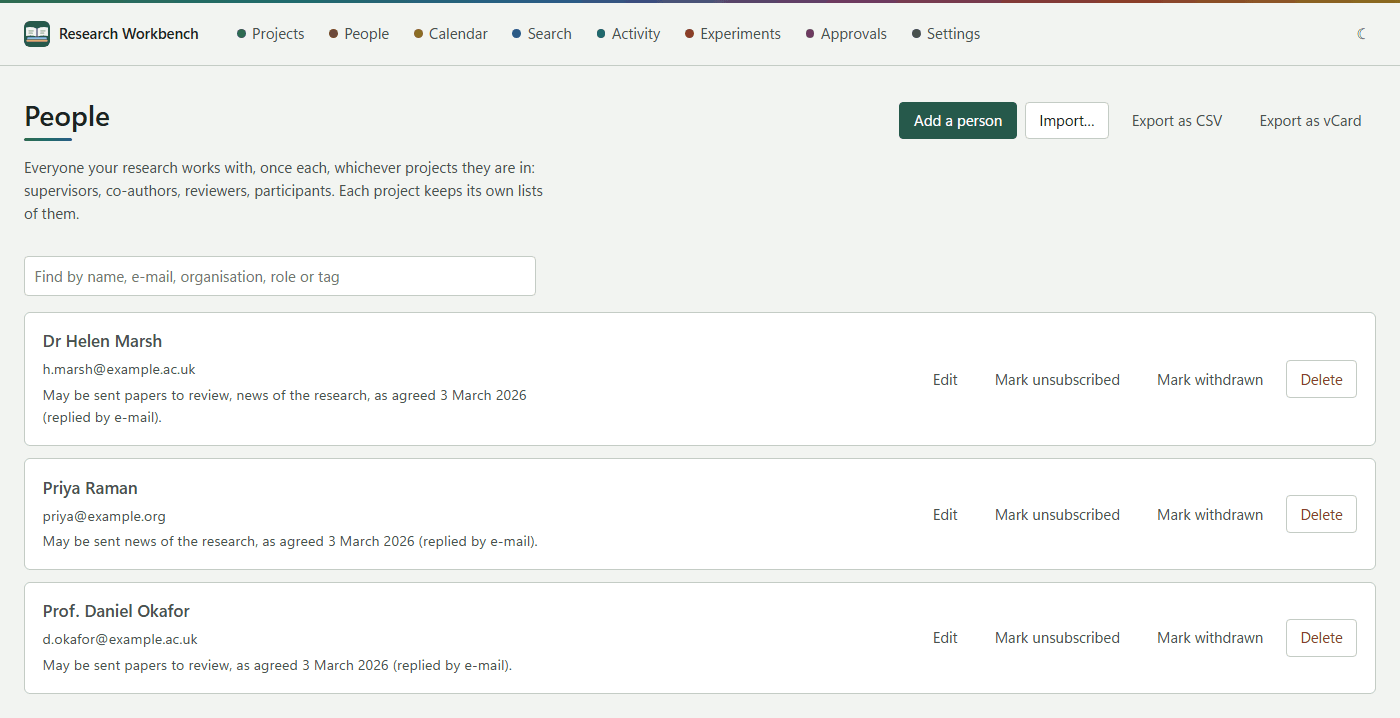
People is your address book: everyone your research works with, once each, whichever projects they are in. Beside each person it keeps what may be done with their details, so nobody is sent something they did not agree to.
Adding a person
Press Add a person:
- Name (required), E-mail, Organisation, Who they are to the research (such as Supervisor or Co-author), Tags and Notes.
- Contacting them:
- Why their details are kept: they agreed; ordinary work with them (legitimate interest); an agreement requires it; the university's public task; or not recorded yet.
- What they agreed to be contacted about: papers to review, surveys, invitations, news of the research.
- When and How they agreed, such as replied by e-mail.
- Participant pseudonym, for people taking part in a study.
Each person shows what they may be sent, such as May be sent papers to review, news of the research, as agreed 3 March 2026.
When someone says stop
- Mark unsubscribed: they are sent nothing more, and an import will not add them back.
- Mark withdrawn: for a participant who withdraws from a study.
- Asked to hear again: puts them back, and asks what they agreed to this time.
- Delete: removes their details everywhere. To stop contacting someone, mark them unsubscribed instead, which keeps them from being added back.
Importing and exporting
Import… reads a .csv (from a spreadsheet, Outlook or Google Contacts) or a .vcf file. People are matched by e-mail address. If everyone in the file agreed to be contacted, tick that and say what they agreed to and how. People who unsubscribed or withdrew are left as they are. Export as CSV and Export as vCard write out the whole address book.
Lists in a project
On a project's page, People holds its lists. Use New list, give it a name (such as Supervisory team) and choose What it is for. Then use Add from the address book. Each list says how many of its people can be sent its kind of message, and why the others cannot.
Sending a paper to a list
From a version's Share for review → A list of this project's, choose a list for papers to review. The workbench shows who it will go to, and who it will not, and why. Write the Subject and Message ({name} becomes each person's name), then press Prepare the e-mails. You get one e-mail draft per person, each with their own review package. The workbench sends nothing itself: open each draft in your mail program and send it. The version then records who was sent it.