
Settings
Every tab of the Settings page: This computer, Layout, Imports, Searching, Writing and Sync.
Settings has six tabs: This computer, Layout, Imports, Searching, Writing and Sync. The tab you are on is kept in the address, such as settings?tab=writing, so you can link to it. These settings belong to this computer: a vault opened on another machine keeps its own.
This computer
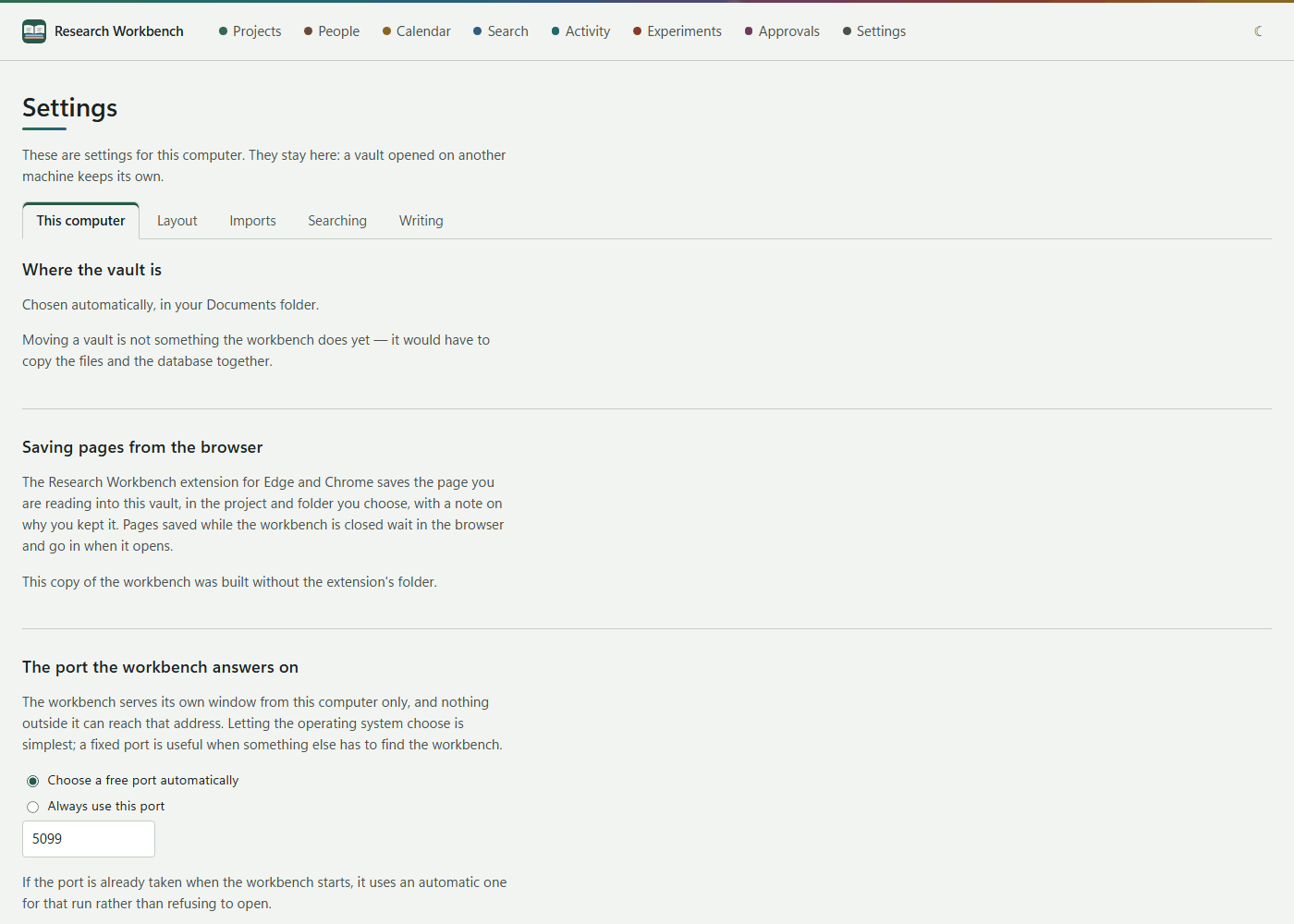
- Where the vault is: the folder that holds your research, by default Research Workbench in your Documents. The workbench cannot move a vault yet.
- Saving pages from the browser: how to add the browser extension, and the folder to load it from. See Browser extension.
- Updates: see Updates and starting afresh.
- The port the workbench answers on: Choose a free port automatically (the default), or Always use this port (1024–65535), which is useful when something else needs to find the workbench. If the port is taken, a free one is used for that run. A change takes effect the next time the workbench starts.
- Running code a model wrote: Let the workbench run a model's code on this computer. See Writing code.
- Start afresh: empties the vault. See Updates and starting afresh.
Layout
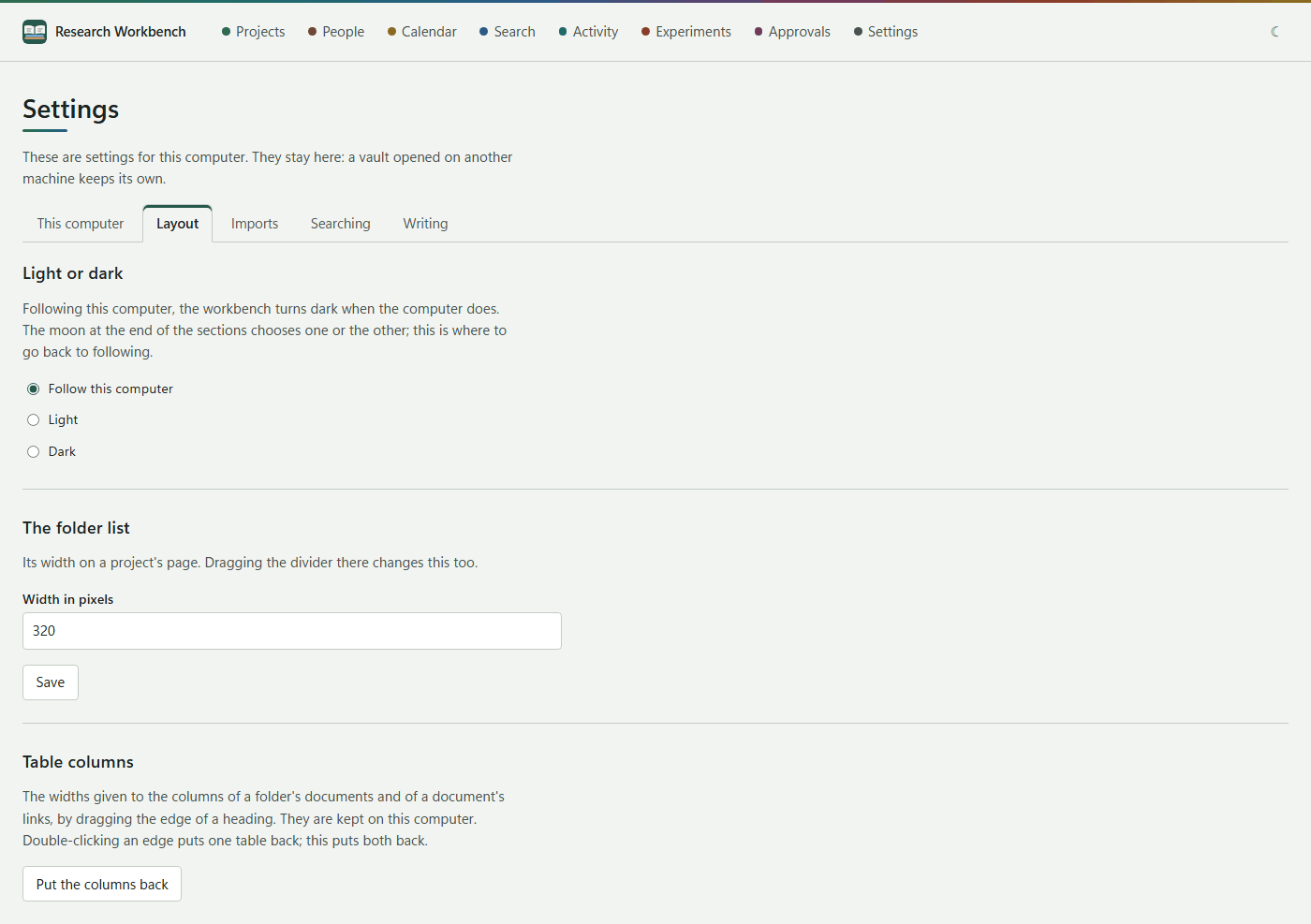
- Light or dark: Follow this computer, Light or Dark. The moon or sun in the top bar switches the theme too, but only here can you go back to following your computer.
- The folder list: its width in pixels (200–640). You can also drag the divider on a project's page.
- Table columns: Put the columns back resets the column widths of the document and link tables.
Imports
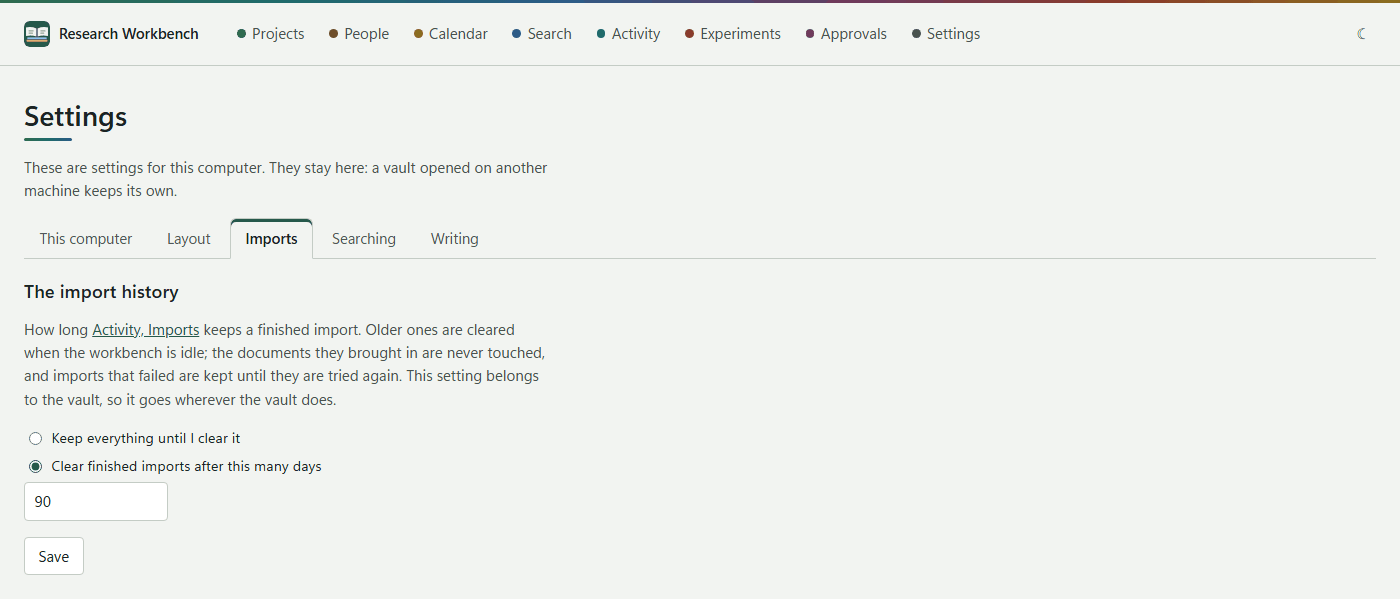
The import history: Keep everything until I clear it, or Clear finished imports after this many days. Failed imports are always kept until you deal with them. This setting is stored in the vault, so it goes wherever the vault goes.
Searching
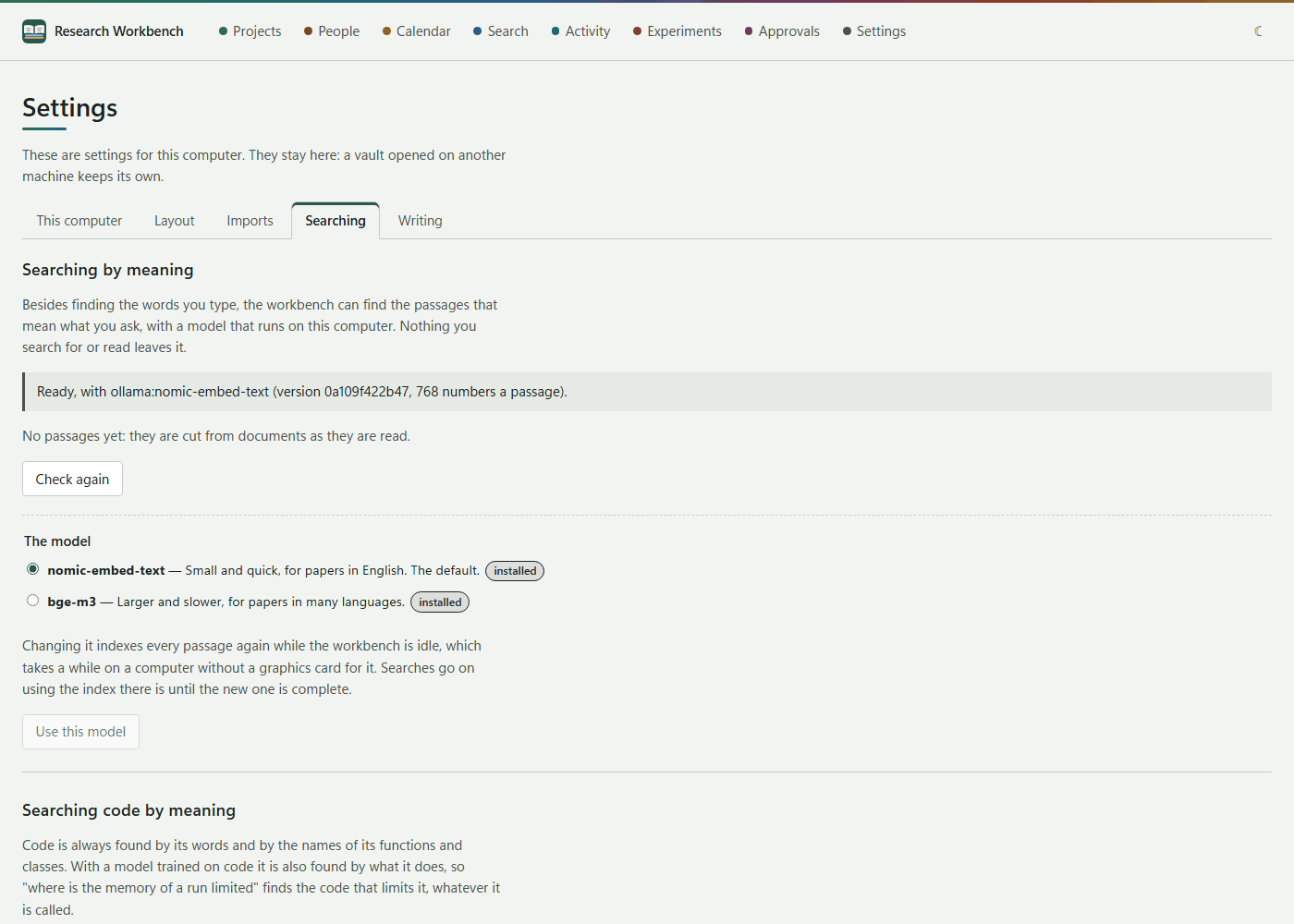
- Searching by meaning: whether it is ready, how far indexing has gone, and Check again. Under The model, choose nomic-embed-text (English; small and quick) or bge-m3 (many languages). If a model is missing, the
ollama pullcommand is shown with a Copy button. - Searching code by meaning: the state of the code model,
qwen3-embedding:0.6b. Code is indexed only while the computer is plugged in.
See Searching.
Writing
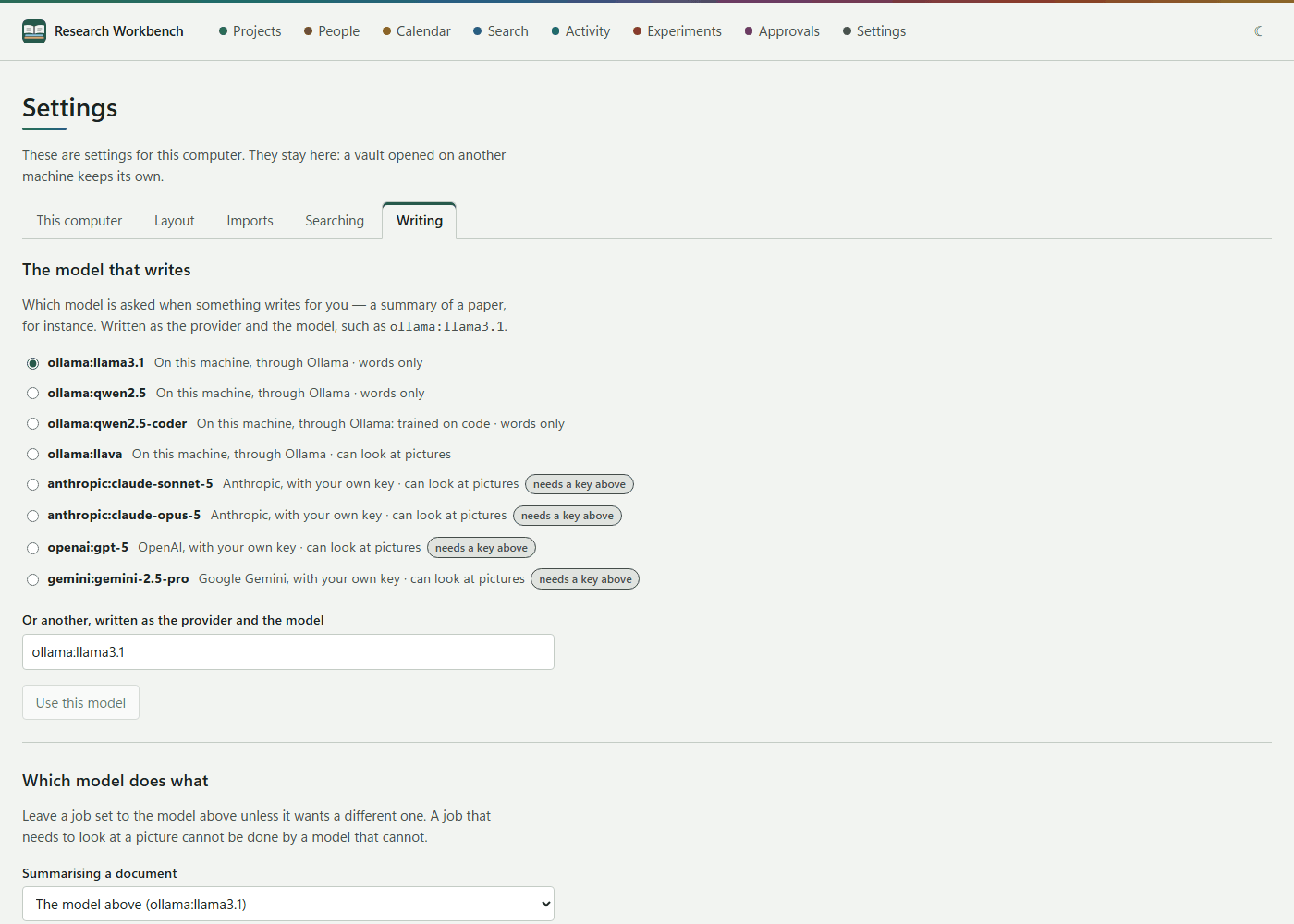
- The model that writes, Which model does what, Your keys and What this model costs. See Models and keys.
- Keeping everything on this machine: Never send anything to a hosted model.
- Papers written out as Word or PDF: Make the web addresses in the reference list links, and the Footer on every page that papers use when they have none of their own.
Sync
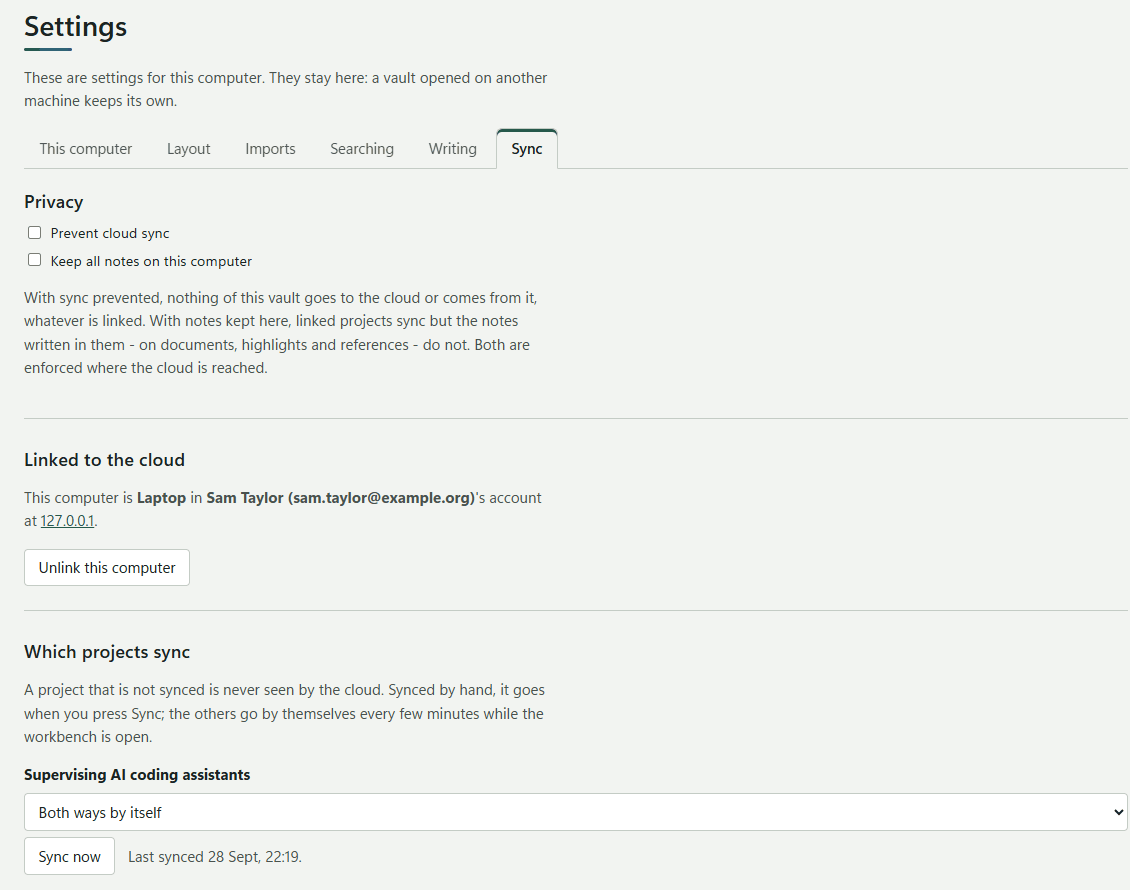
Linking this computer to the cloud, which projects sync and how, the privacy switches, and changes made in both places. See Sync.
In the cloud workbench, Settings has no This computer or Sync tab, and the settings go with your account, whichever computer you sign in from.