
Your first steps
The start page, the sections in the top bar, and a ten-minute path from an empty vault to a searchable project.
The top bar
Every page shares the same top bar. Its sections are Projects, People, Calendar, Search, Activity, Experiments, Approvals and Settings. Click the Research Workbench name to return to the start page. In a narrow window the sections fold into a menu.
The moon (or sun) at the right end switches between the light and dark themes. To go back to following your computer's theme, use Settings → Layout.
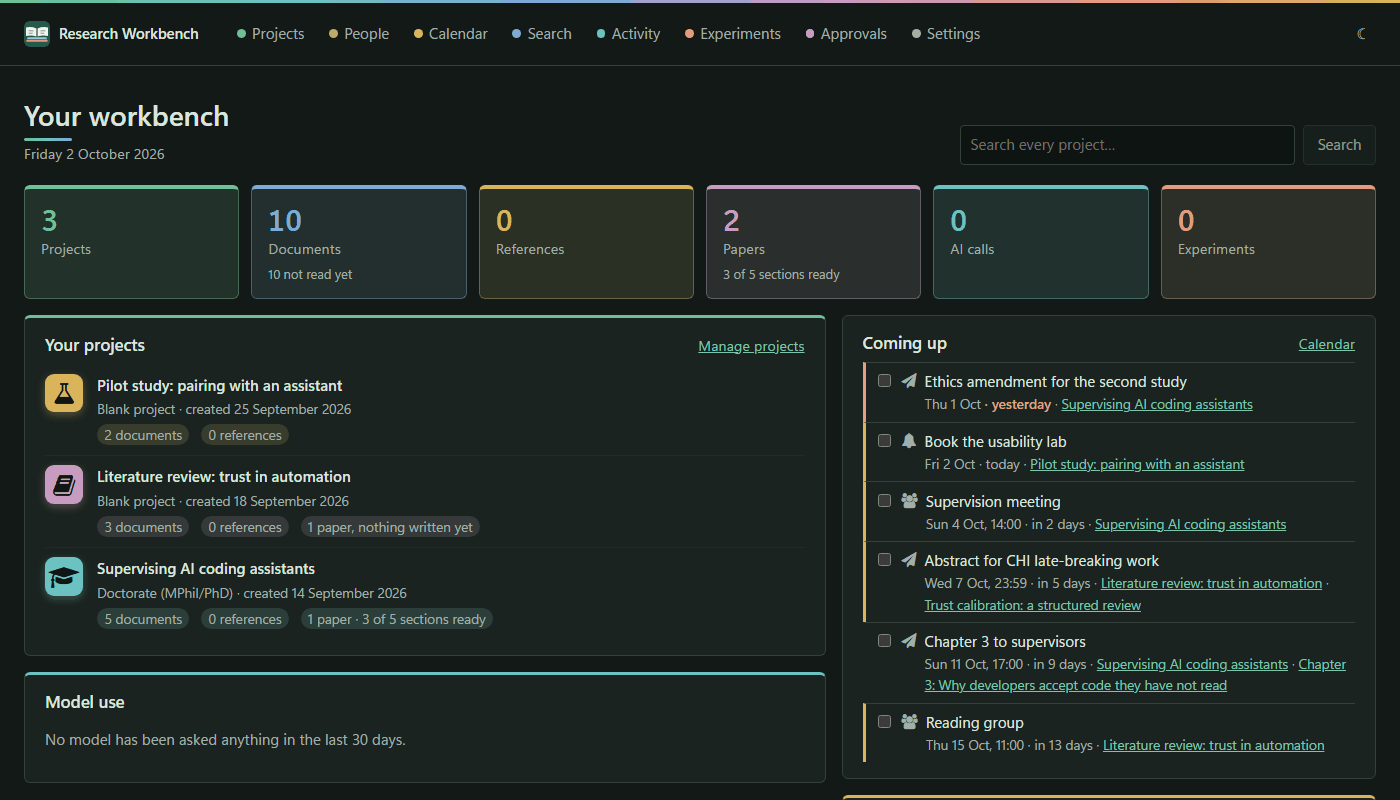
The start page
The start page is headed Your workbench, with today's date and a box to Search every project….
- The tiles count your Projects, Documents (with how many are not read yet), References, Papers (with how many sections are ready), AI calls (all time, and the last 30 days), and Experiments.
- Your projects lists up to six projects, most recently active first, each with its colour, its mark and its counts. All projects (or Manage projects) opens the full list.
- Model use shows the last 30 days of AI calls: how many, what they cost, and how many failed, broken down by provider. Every call opens the evidence.
- Coming up lists deadlines due in the next 14 days, and any you missed and have not ticked off. You can tick them done here. Calendar opens the calendar.
- Needs your attention lists approvals waiting for you, repositories with a newer commit, files still importing or that failed, and documents that could not be read. When there is nothing, it says Nothing is waiting for you.
- Recent imports shows the last eight files brought in. All imports opens the import history.
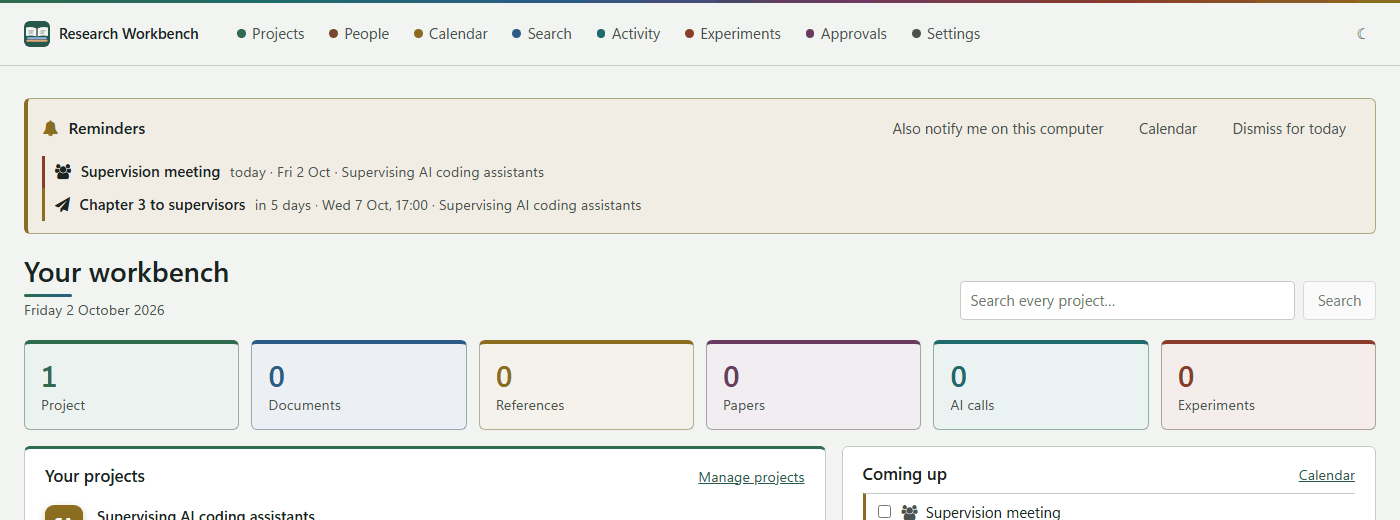
When a reminder is due, a Reminders strip appears at the top of every page. See Reminders.
From empty to searchable in ten minutes
- Create a project. Go to Projects, give it a name, choose a template (for a PhD, Doctorate (MPhil/PhD)), and press Create project. See Projects.
- Choose a folder on the left, for example Literature Review.
- Add files. Press Add files and drop in a few PDFs. They are copied into the vault and read in the background, so you can carry on working. See Adding material.
- Install Ollama from ollama.com and pull a model, for example
ollama pull llama3.1andollama pull nomic-embed-text. The workbench then summarises, answers and searches by meaning, all on your computer. See Models and keys. - Search. Type a question in Search and press Answer from these papers. See Answers from your papers.
- Read. Open a document, highlight a passage, and add a note. See Reading documents.
- Add the browser extension, so a paper you find on the web goes straight into the right folder. See Browser extension.
Tip: Activity → Work in the background shows what the workbench is still doing (reading text, making working copies, indexing for meaning), so you know when a new import is fully searchable.