
Deadlines and the calendar
Adding deadlines to projects and papers, the month, week and agenda views, and putting them in Outlook or on your phone.
A deadline belongs to a project, and optionally to one of its papers: a submission, a supervision meeting, a transfer review, a conference.
Adding a deadline
Use Add a deadline in the calendar, in Project settings or in Paper settings, or click a day's number in the calendar.
- What: for example Submit the chapter.
- Kind: Submission, Review, Meeting, Event, Milestone or Reminder. Each has its own icon.
- On, and Until (optional) for something that lasts several days.
- At (optional): a time, written as
23:59. Leave it empty for the whole day. With a time, choose a Time zone: your own time, Anywhere on Earth (UTC−12), as many conferences use, or UTC. - Remind me, days before: see Reminders.
- Notes (optional).
Press Add it. Each deadline in a list has a tickbox for done, plus Change and Remove. Its colour shows its state: done, missed, today, soon or later.
The calendar
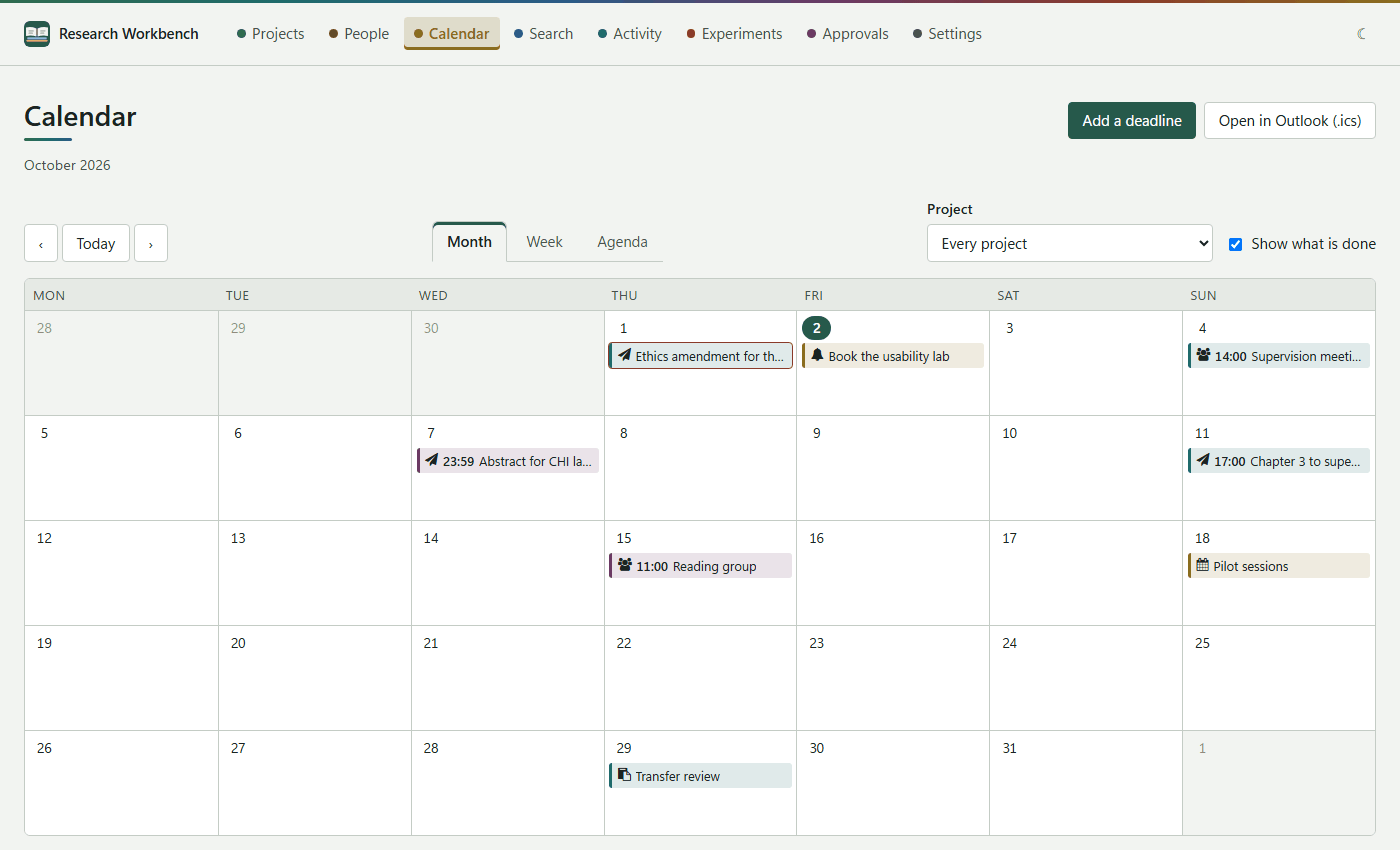
Calendar in the top bar shows every project's deadlines.
- Month, Week and Agenda. The agenda lists eight weeks, a week at a time.
- ‹, Today and › move through time.
- Project shows one project, or every project.
- Show what is done hides or shows the deadlines you have ticked off.
- Click a deadline to see it in a drawer, where you can change it.
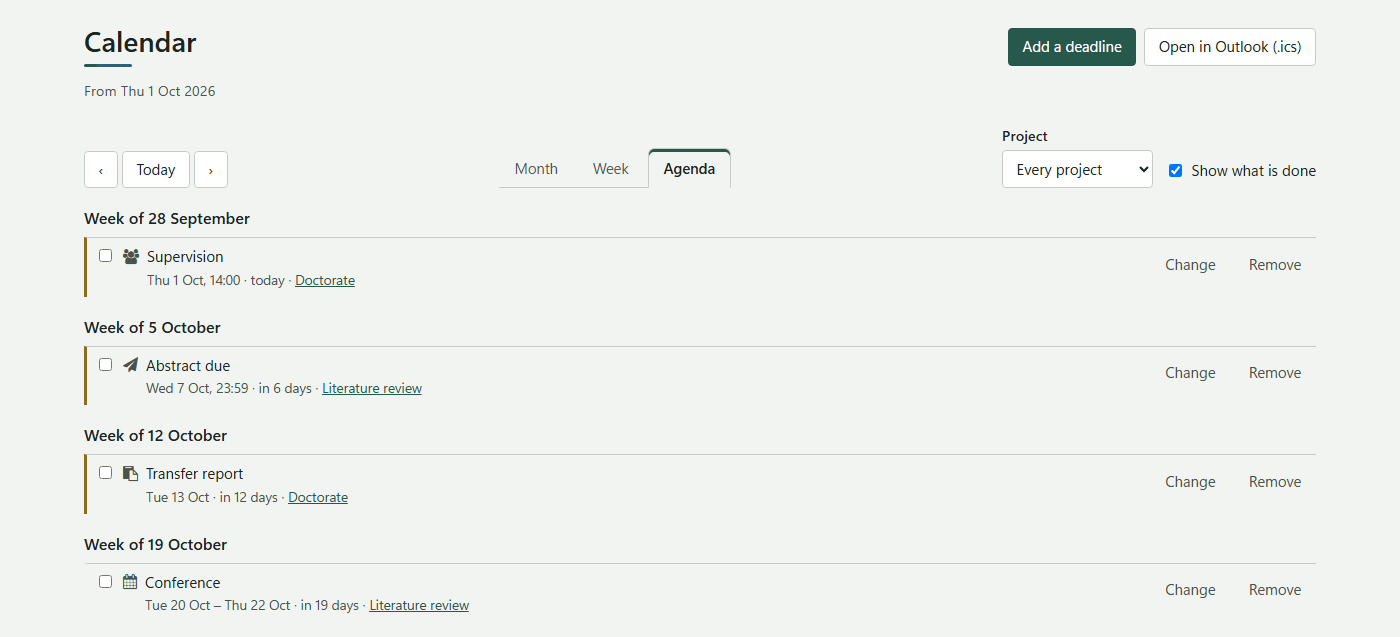
The week starts on the day your regional settings use.
In Outlook or on your phone
Open in Outlook (.ics) downloads a calendar file named Research Workbench deadlines, for the project you are showing. Open it in Outlook, Apple Calendar or Google Calendar, or on your phone. Deadlines with Remind me set carry an alarm too, so you are reminded even when the workbench is closed.
The file is a copy: changes made in Outlook do not come back. Download it again after you change your deadlines.