
Searching
Searching every project by words and by meaning, reading the results, and searching code.
Search finds passages, not just documents. Each result is a paper with its best passages under it, each showing where in the paper it stands.
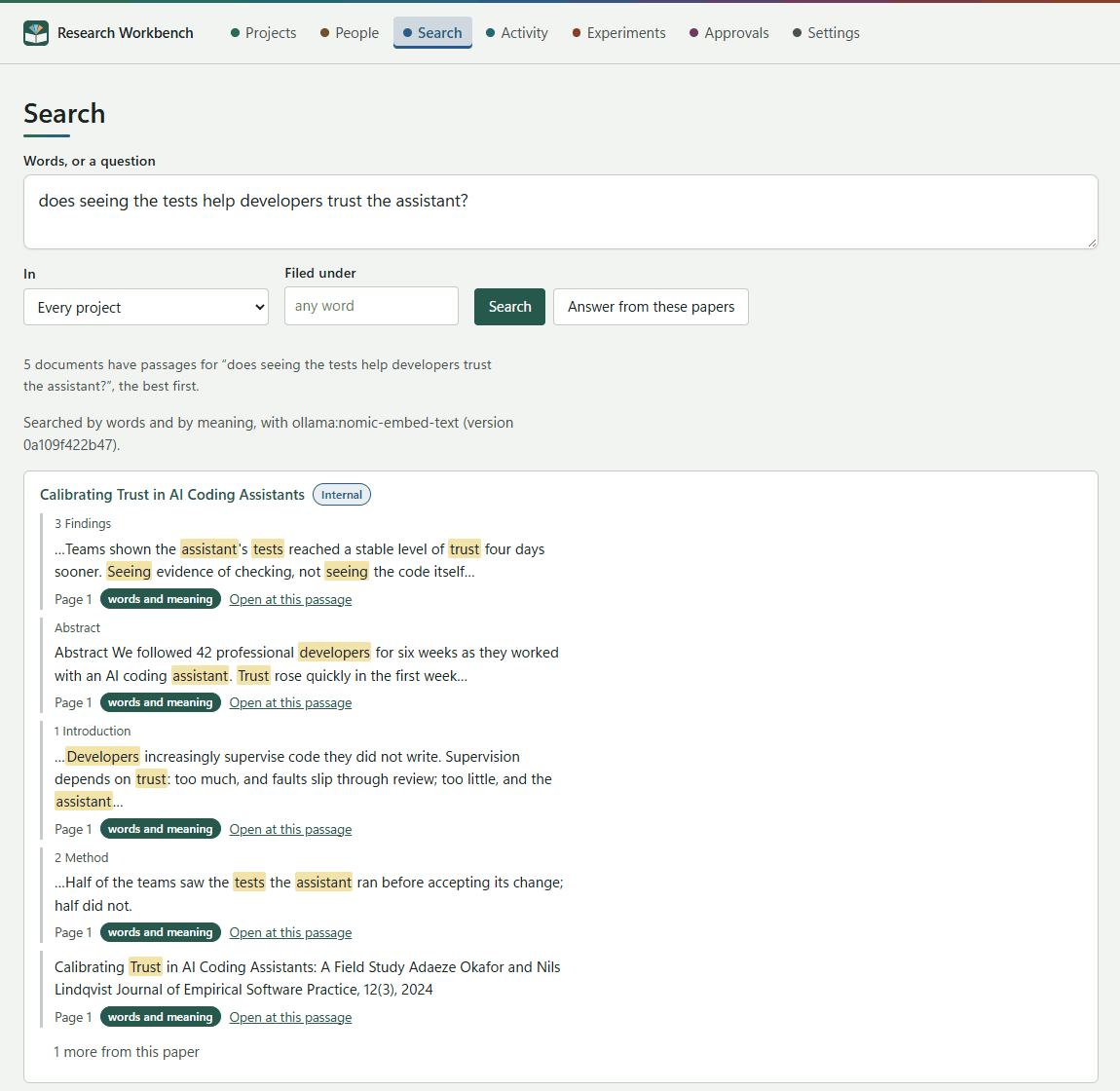
Asking
- Words, or a question: at least two characters. Press Enter to search, or Shift+Enter for a new line.
- In: every project, or one project.
- Filed under: only documents with that tag.
- Search, or Answer from these papers (see Answers from your papers).
Reading the results
Each paper shows its title, its label, and up to ten passages, five at first (press more from this paper for the rest). Each passage shows:
- The section it is in, such as 2 Method › 2.1 Coding.
- The snippet, with your words marked.
- The page or pages.
- How it was found: words, meaning or words and meaning. Hovering over the badge shows its rank in each.
- Open at this passage: this opens the document at that passage. Going back returns you to the same place in the results.
Under the results, the workbench always says how it searched. For example:
- Searched by words and by meaning, with nomic-embed-text.
- Searched by words only, with the reason and a link to the setting that fixes it.
- How many passages are not indexed for meaning yet, or are held back from the model by their labels. Those are still found by their words.
Searching by meaning
Searching by meaning finds passages that mean what you asked, even when they use other words. On the desktop it uses a small model that runs on your computer through Ollama. Choose it in Settings → Searching:
| Model | Good for | Size |
|---|---|---|
| nomic-embed-text (default) | Papers in English; small and quick | about 270 MB |
| bge-m3 | Papers in many languages; larger and slower | about 1.2 GB |
If the model is missing, Settings shows the command to install it (for example ollama pull nomic-embed-text) with a Copy button, and Check again. When you change the model, everything is indexed again while the workbench is idle, and searches use the old index until the new one is complete.
Nothing you search for or read leaves your computer.
Searching code
When a project holds code (kept from Write code, or a repository you chose to search), an In code section appears above the papers. Each hit shows the function or file, the path and lines, and the matching lines, and opens the Code view at that line.
With the code model qwen3-embedding:0.6b installed, code is found by meaning too. For example, where is the memory of a run limited finds the code that limits it, whatever it is called. Code is indexed for meaning only while the computer is plugged in.