
The cloud workbench
Getting access to the workbench in your browser, signing in, your account page, what the cloud does differently, and erasing your workspace.
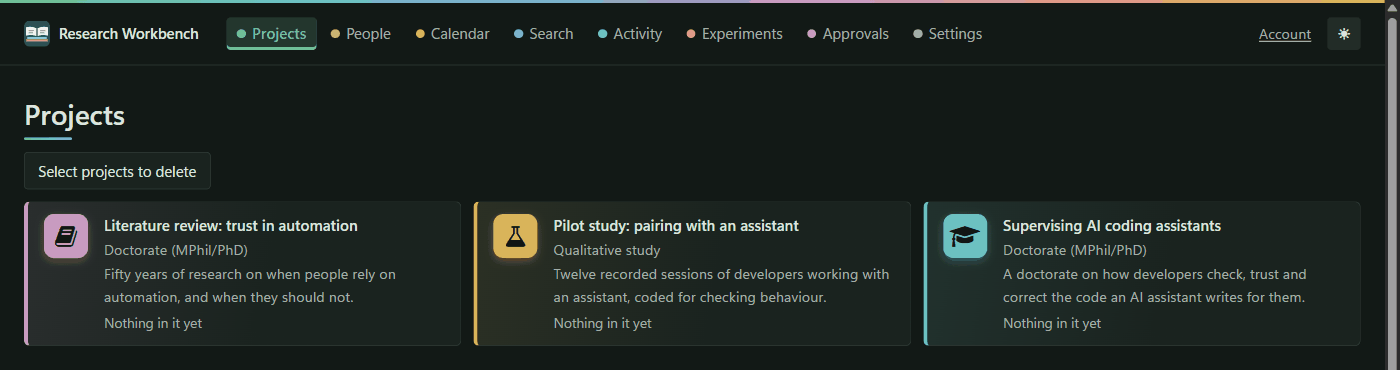
The cloud workbench is the same workbench in your browser, at app.researchworkbench.space. You can reach it from any computer, and it is kept in step with the desktop workbench by sync.
Getting access
The cloud workbench is open by invitation while it is tested.
- When you register on the website, tick I would like to use the Research Workbench in the cloud, as well as on my own computer.
- Or later, from your website account: Cloud workbench → Ask to use the cloud workbench.
An administrator reads each request, and you are told by e-mail. Your account page then says You can use the cloud workbench, with Open the workbench.
Signing in
The cloud has no accounts of its own: you sign in with your website account, using its password, a magic link or a passkey. If you are already signed in on the website, you go straight in. Signing out of the workbench signs you out of the website too.
The Welcome page (/welcome) is where to start. Signed out, it explains the workbench and offers Sign in. Signed in, it greets you, with Open the workbench.
If you see:
- Not invited yet: your account has not been invited. Ask an administrator, then sign in again.
- Could not sign in: the website did not answer, or the sign-in was interrupted. Try again.
Your account
Open Your account (/account) from the top bar.
- Computers that sync: each linked computer, when it was linked and when it last synced, with Unlink. Unlinking stops a computer syncing; what it already has stays on it.
- Reminder emails: Email me my deadline reminders. See Reminders.
- Erase your workspace: see below.
What the cloud does differently
| Desktop | Cloud | |
|---|---|---|
| Models | Ollama on your computer, or hosted with your key | Hosted only (Anthropic, OpenAI, Gemini), with your own key |
| Search by meaning | A model on your computer | Off until you turn it on under Settings → Searching. It then uses OpenAI's embedding model with your key |
| Labels | Personal and special-category documents go only to local models | Personal and special-category documents are held back from models unless their folder allows it, and the page says how many |
| Running a model's code | In a sandbox, if you allow it | Never |
| Zotero | Reads your local library | Not yet |
| Browser extension | Saves into it | Pages arrive by sync from the desktop |
| Reminders | The strip, notifications and the .ics file | Also e-mails |
Keys for hosted models are entered in Settings → Writing, as on the desktop. In the cloud they are stored encrypted for you alone and never shown back, and what you spend is billed to you by the provider. Shared projects and notes written together are still to come.
Erasing your workspace
Under Erase your workspace on your account page, type erase my workspace and press Erase everything. This deletes every project, document, file, note and summary, the search index, and the record of every model call. Then your cloud account goes, with its keys and linked computers. None of it can be brought back.
Your website account and your desktop workbench are kept. If you are still invited, signing in again starts an empty workspace.