
Sync
Linking a computer to the cloud, choosing which projects sync and how, what travels, and settling changes made in both places.
Sync keeps chosen projects in step between your computer and the cloud workbench. Nothing is sent until you choose a project, and a project that is not synced is never seen by the cloud.
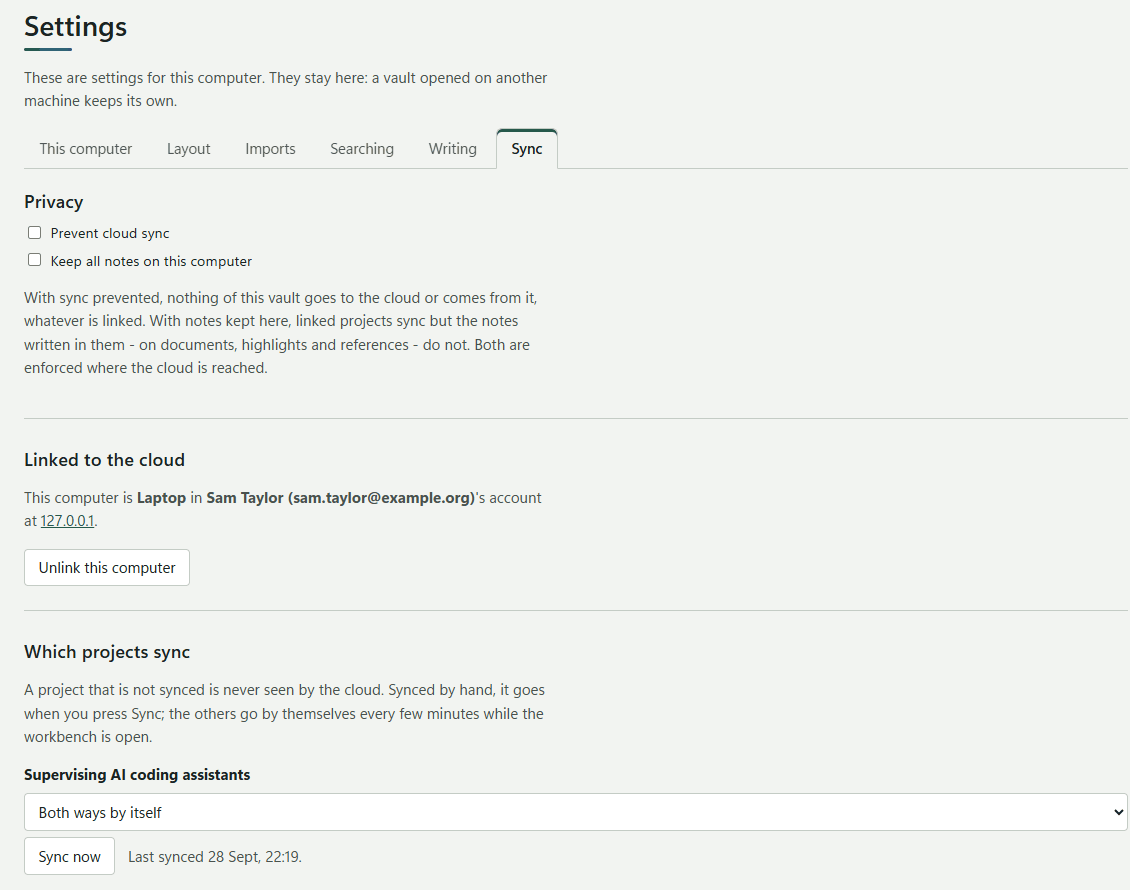
Linking this computer
- On the desktop, go to Settings → Sync → Link this computer to the cloud.
- Check The cloud's address (
https://app.researchworkbench.space) and What to call this computer there, then press Link. - The workbench shows a code, such as
KQ7M-4TXW, and the address to confirm it at. - Open that address, signed in. The cloud asks: Laptop asks to sync with your account. Link it only if it is yours and it shows this code. Enter the code and press Link this computer.
- Back on the computer: Linked. Choose below which projects sync.
Codes last ten minutes. If one runs out, press Link again.
Choosing projects
Under Which projects sync, each project has a mode:
| Mode | What it does |
|---|---|
| Not synced | Never seen by the cloud |
| By hand | Goes when you press Sync now |
| Sends by itself | Your changes go up every few minutes |
| Receives by itself | The cloud's changes come down every few minutes |
| Both ways by itself | Both directions, every few minutes |
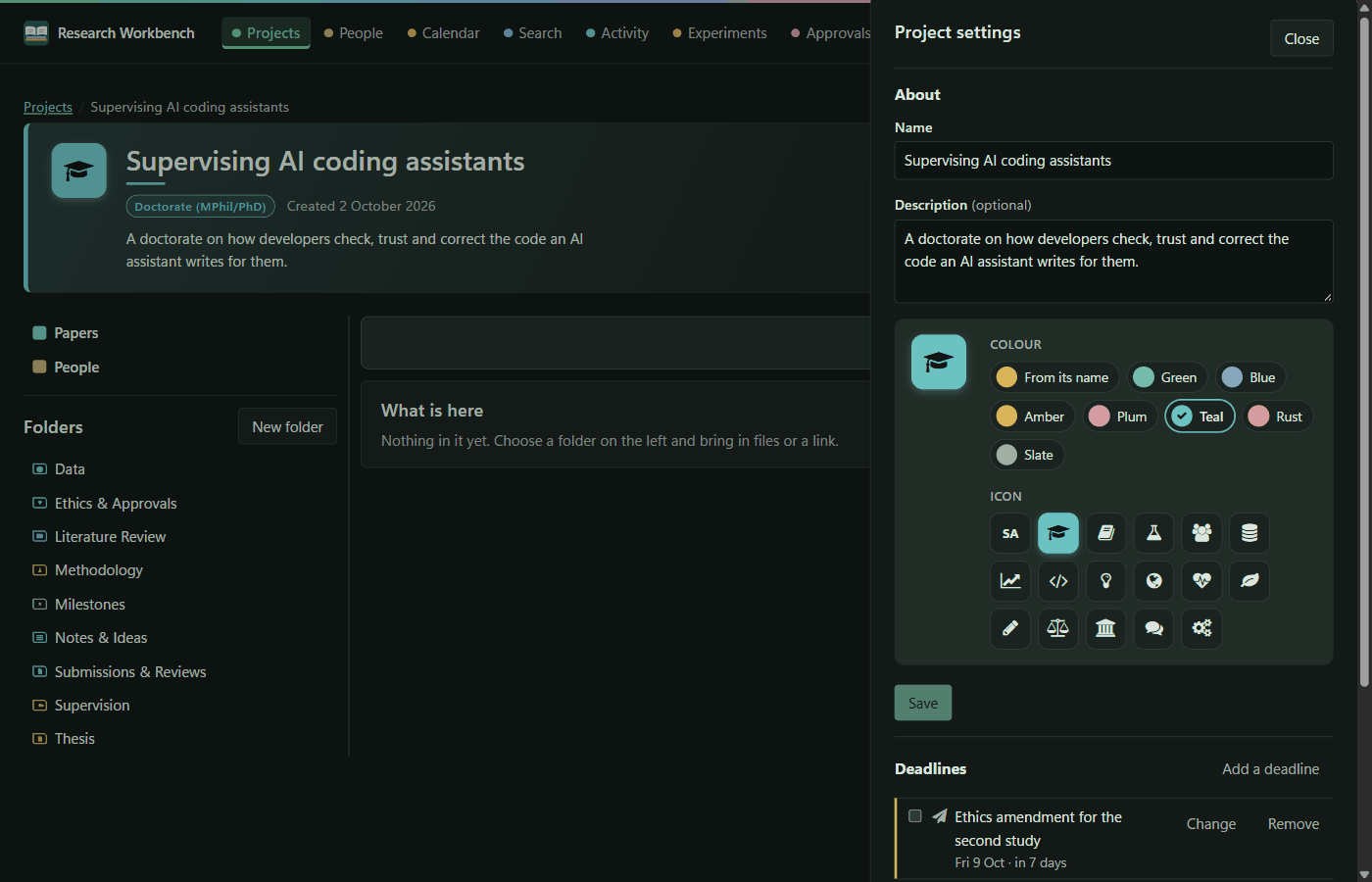
Automatic syncs run every two minutes while the workbench is open, and soon after an import finishes. Sync all syncs every project. A project's page shows its state too (Synced, Syncing…, Sync failed), and its Project settings has the same choice.
In the cloud, not on this computer lists projects started in the cloud, or on another computer, with Bring it here.
What travels, and what stays
Travels: the project and its folders; documents with their files (up to 256 MB each); tags, highlights and notes; working copies and summaries; papers, sections and sealed versions; review comments and claim checks; references; approvals; the address book and lists; deadlines; and the record of every model call. Deletions travel too.
Stays on each side: extracted text, first-page previews and the search index, which are made again on arrival. Also import history, settings, prompt templates and workflows, runs, and experiments. Embeddings are never copied: each side indexes with its own model.
Changed in both places
Sync merges field by field. A change made on one side only simply goes across, and the same change made on both sides is no conflict.
- Text you wrote, such as a note, a highlight comment, a working copy, a section of a paper or a summary: if both sides changed it differently, each side keeps its own until you choose. Under Changed in both places, each conflict shows On this computer and In the cloud, with Keep this computer's and Keep the cloud's.
- Other fields, such as a title: the cloud's value is kept, and this computer's is recorded beside it.
Nothing is merged or lost while a conflict waits.
Privacy
- Prevent cloud sync: nothing in this vault goes to the cloud or comes from it, whatever is linked.
- Keep all notes on this computer: linked projects sync, but the notes written in them (on documents, highlights and references) do not.
- Never send anything to a hosted model (Settings → Writing) also stops sync.
These are enforced where the cloud is reached, not just hidden in the screen.
Unlinking
Unlink this computer stops it syncing. Everything in the vault stays as it is, including what came from the cloud. You can also unlink a computer from your cloud account page.