
The browser extension
Installing the extension in Edge, Chrome, Firefox or Safari, saving pages and PDFs into a project, and what happens while the workbench is closed.
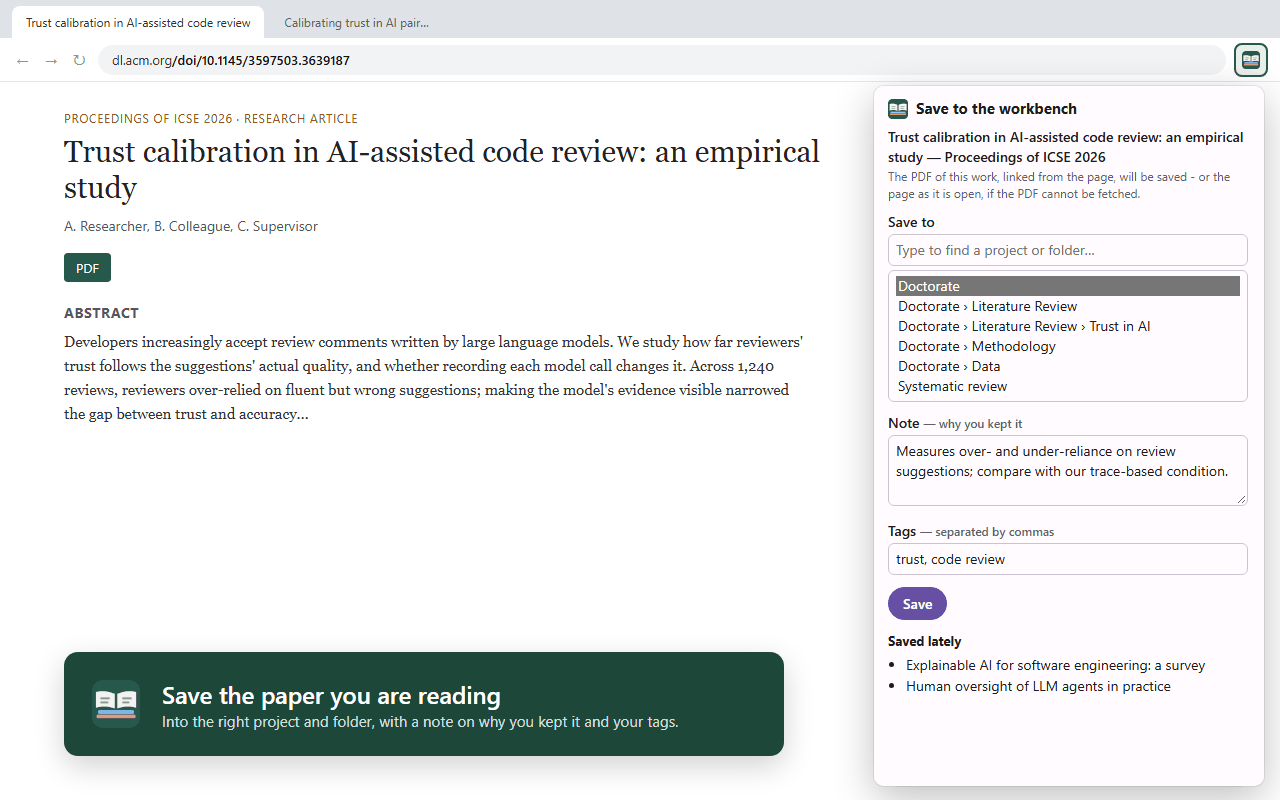
The extension puts a Save to Research Workbench button in your browser. It saves the paper you are reading into the right project and folder, with a note on why you kept it and your tags. It saves into the desktop workbench on the same computer. Projects that sync carry the paper on to the cloud.
Installing it
Start the desktop workbench once first. Each time it starts, it registers its helper with Edge, Chrome, Chromium and Firefox, which is how the extension talks to it.
Microsoft Edge and Google Chrome
Until the extension is listed in the Edge and Chrome stores:
- Open
edge://extensions(orchrome://extensions) and turn on Developer mode. - Choose Load unpacked, and pick the
browser-extensionfolder beside the workbench. Settings → This computer → Saving pages from the browser shows its exact path. - Pin the extension to the toolbar.
Once it is in the stores, it installs with one click.
Firefox
The Firefox version needs Firefox 140 or later, on a desktop computer (Firefox for Android cannot talk to other programs). Install it from Firefox Add-ons (addons.mozilla.org) once it is listed there.
Safari (macOS)
Safari needs a small Mac app, Research Workbench for Safari, which holds the extension. Until it is signed:
- In Safari, open Settings → Advanced and tick Show features for web developers.
- In the Develop menu, choose Allow Unsigned Extensions. Safari asks for this again each time it starts.
- Open the app. It says whether the extension is on, and Quit and Open Safari Settings… takes you there.
- In Safari Settings → Extensions, turn on Research Workbench, and allow it on the sites you save from.
Saving a page
Press the button, or Alt+Shift+S. The popup says what it will keep:
- The page, as it is open now, will be saved.
- The PDF this tab shows will be saved.
- The PDF of this work, linked from the page, will be saved, or the page as it is open, if the PDF cannot be fetched.
Then:
- Save to: type to find a project or folder, shown as Project › Folder. The extension suggests where the last page from the same site went, otherwise the last place you used, so pressing Save at once always works.
- Note: why you kept it (optional). It becomes the document's note in the workbench.
- Tags: separated by commas. The project's tags are suggested.
- Press Save. It shows Reading the page…, then Saved.
Saved lately lists your last five saves.
PDFs from publishers
On an article's page, the extension looks for the PDF of the same work (the page's citation_pdf_url, links to PDFs, or a PDF with the same DOI) and fetches it with your own access, as you would. The page itself is kept too, for its title and DOI. If the DOI matches one of the project's references, the paper is filed under it.
Publishers' online readers (/epdf/, /reader/) are never saved as the paper. If the PDF cannot be fetched, open the PDF itself (Download PDF) and save that tab.
A PDF shown in the browser's own viewer may make the browser ask, the first time, to let the extension read that site. The limit is 45 MB. For anything larger, download it and add it in the workbench.
When the workbench is closed
Saving always works. Pages wait in the browser, and the button's badge shows how many are waiting. The extension tries again every minute, and they go in as soon as the workbench opens. Open the workbench in the popup starts it.
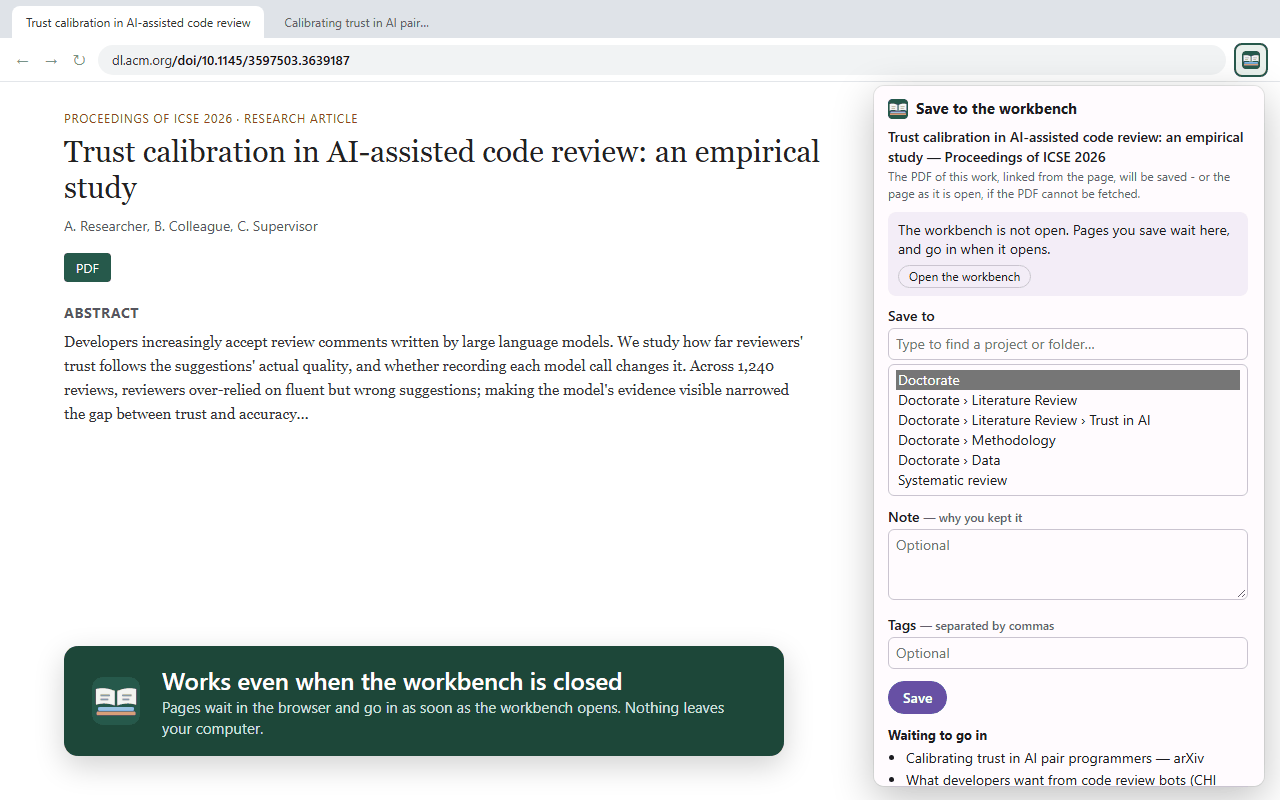
A page the workbench refused shows why, with Try again and Discard, and the badge shows a red !.
If you have no project yet, the popup says so: create one in the workbench, then open the popup again.
Privacy
- The extension talks to the workbench directly on your computer (native messaging), not over the network, so no port is opened to web pages. Safari uses a local port protected by a secret.
- It can ask the workbench for three things only: whether it is there, the list of projects, folders and tags, and to save a page. It cannot read your vault.
- It has no analytics or tracking, and makes no network requests except to fetch a PDF you asked it to save.
- What it keeps in the browser (project and folder names, the place used per site, queued pages, recent titles) is removed with the extension.
The full policy is on the website at /privacy/browser-extension.