
References and Zotero
Keeping a project's reference list, importing BibTeX and RIS, linking files to works, and bringing in Zotero collections.
A reference is a work: what it is, who wrote it and where it appeared. A document is a file. One preprint and one published PDF are two files of one work. Keeping the two apart is what lets the workbench match citations across papers.
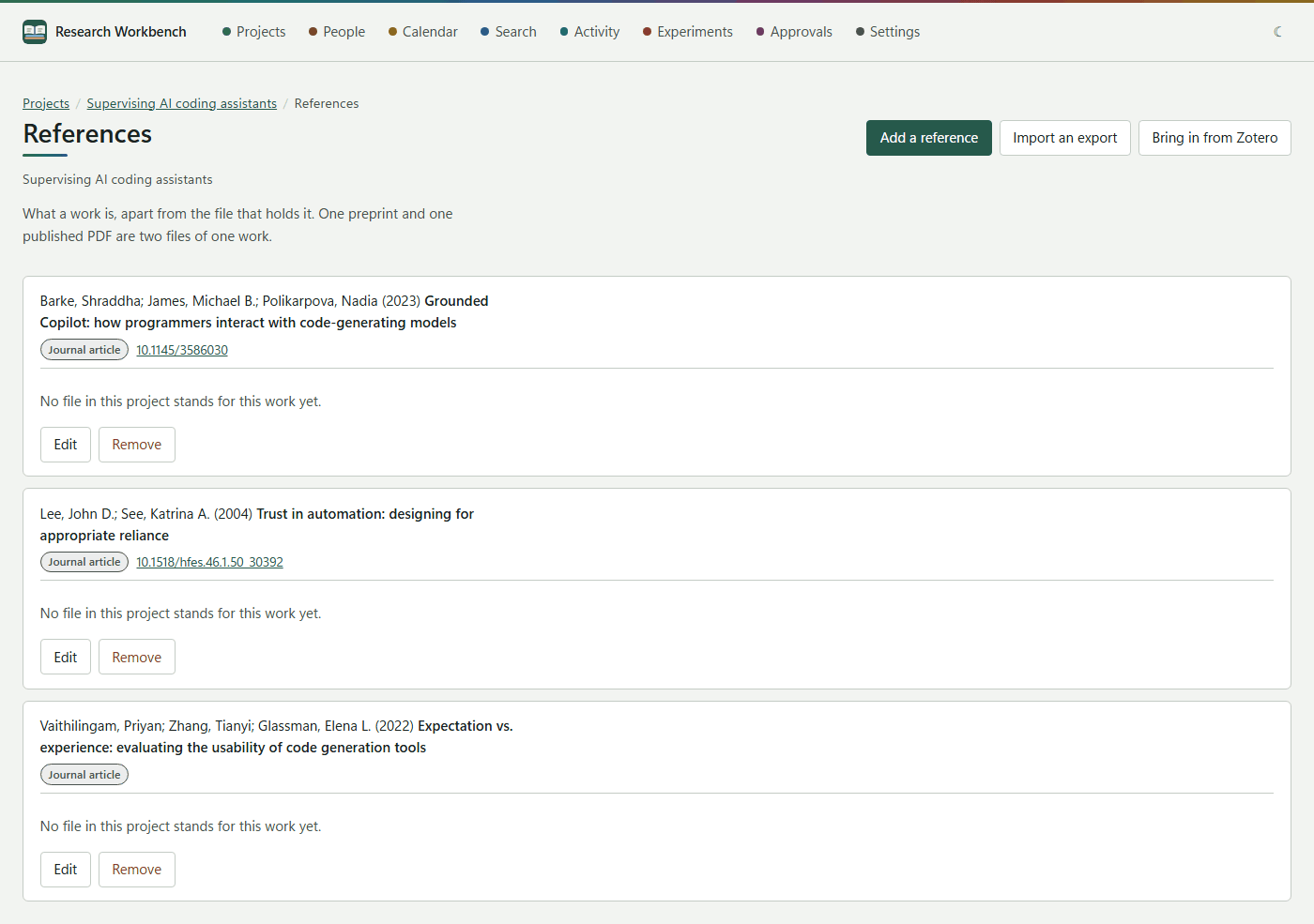
Open a project's references with the References button in its header.
Adding references
- Add a reference: fill in the title, authors and year, the kind (journal article, conference paper, preprint, book, chapter, thesis, report, web page, dataset, software or video recording), where it appeared, the DOI and address, the publication and reading dates, what it argues, and your notes.
- Import an export: paste BibTeX or RIS from Zotero, Mendeley, Scopus or a publisher. The workbench works out the format. Works already in the project are refreshed, not duplicated, and it tells you how many were added and how many refreshed.
- Bring in from Zotero: see below.
DOIs are kept without the https://doi.org/ prefix, so the same work is recognised however its DOI was written.
Linking files to works
Each reference lists the files that stand for it. Attach a file links one of the project's documents; Detach unlinks it. Neither removes the file or the reference.
A paper you save from the browser whose DOI matches a reference is filed under that reference automatically.
Zotero
The workbench reads your local Zotero library directly. Zotero stays in charge: nothing is ever written to Zotero, syncing again refreshes whatever changed there, and a work you delete in Zotero stays in the workbench.
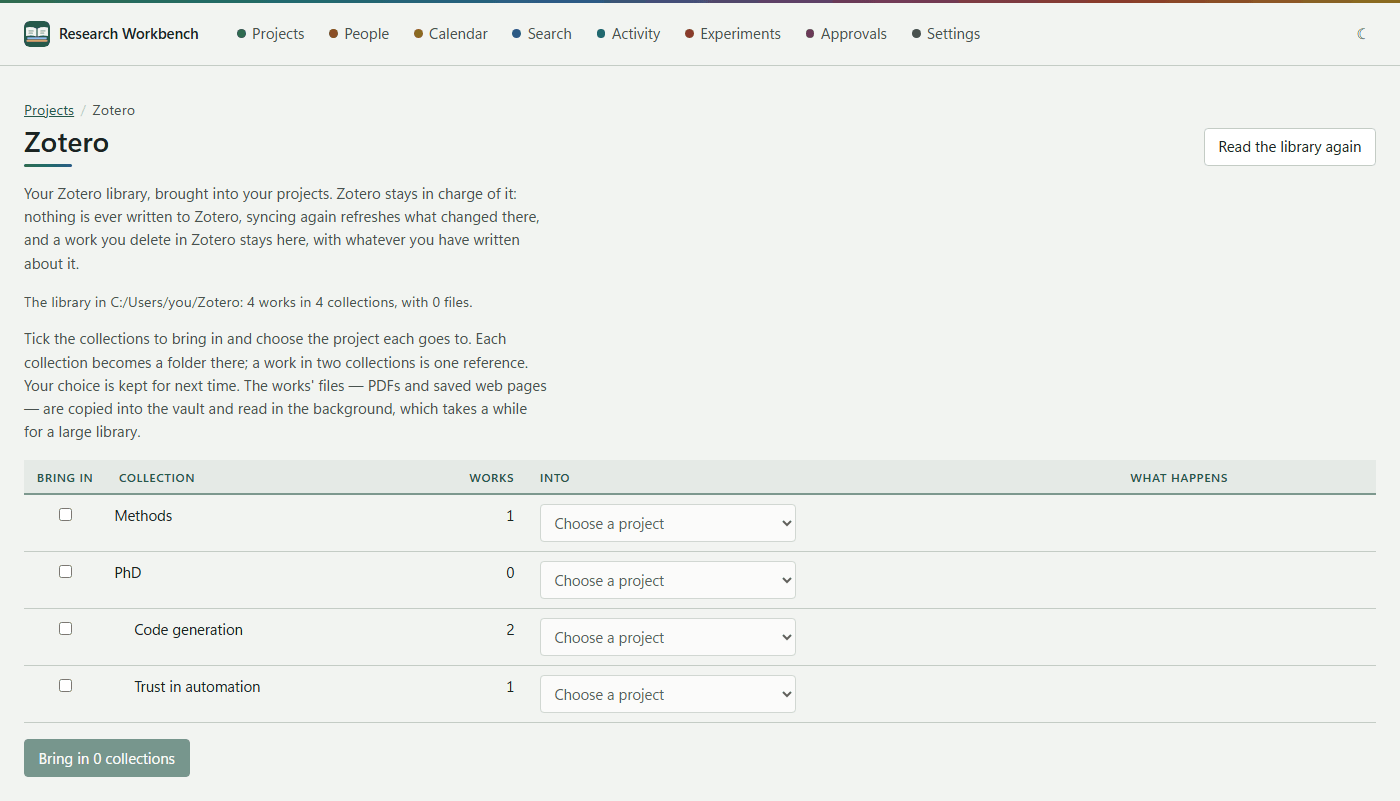
- Open Bring in from Zotero from a project's references, or go to
/zotero. - The workbench finds your library. If it does not, enter Zotero's data folder (in Zotero, see Settings › Advanced › Files and Folders) and press Use this folder.
- Tick the collections to bring in, and choose under Into which project each goes to. What happens previews the result, for example 12 new or 3 already here, refreshed.
- Press Bring in N collections.
Each collection becomes a folder in its project, and a work in two collections becomes one reference. Attached PDFs and saved web pages are copied into the vault and read in the background. Your choices are remembered for next time, so Read the library again and bringing them in again is all a later sync takes.
The cloud workbench cannot read Zotero yet. Bring your library in on the desktop, and let the project sync.